Access Reviews
In the Access Reviews module, you can launch a new access review campaign for supervisors or resource owners. This can be done periodically depending on your internal processes. This module is only accessible to the Admin role.
If you are a supervisor and have received an email to complete your access review, you can click here to see a detailed guide on how to complete the review. If you are a resource owner and have received an email to complete your access review, you can click here to see a detailed guide on how to complete the review.
Start a supervisor access review campaign Start a resource owner review campaign Close a supervisor or resource owner access review campaign Send email reminders during access review campaigns Impersonate a supervisor or owner during an access review campaign
Start a supervisor access review campaign
Starting a supervisor access review campaign will send an email to all supervisors requiring them to review the accesses of their subordinates.
Click on the Access Reviews Module to view the access review page.
Access Review Module
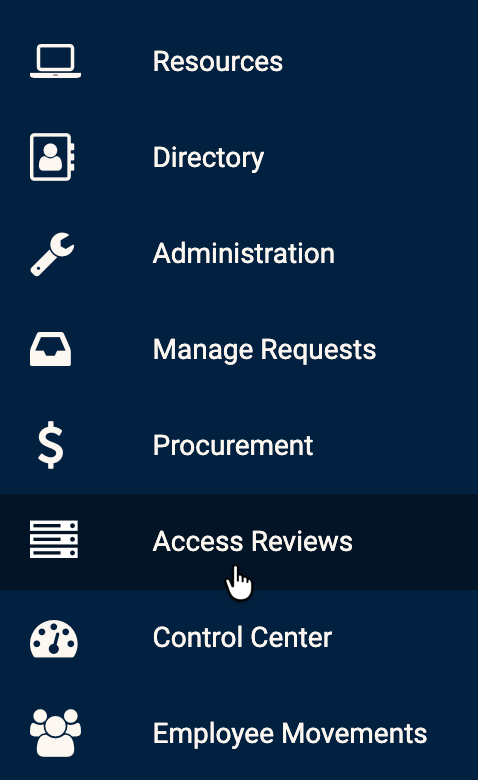
From this page, you should see the two types of Access Review campaigns that you can start.
To start a Supervisor Access Review campaign, click on the Start button.
Starting a supervisor access review

You should be able to input a name, description and scope (optional), which allows you to restrict the scope of your access review to a type of resource. You will also need to input two dates:
- Cutoff date: TBC
- Review deadline date: TBC
After this is done, all supervisors will receive an email to perform their access review.
You can also see the status of the access review by clicking the "View current supervisors review status" button.
Viewing supervisor access review status
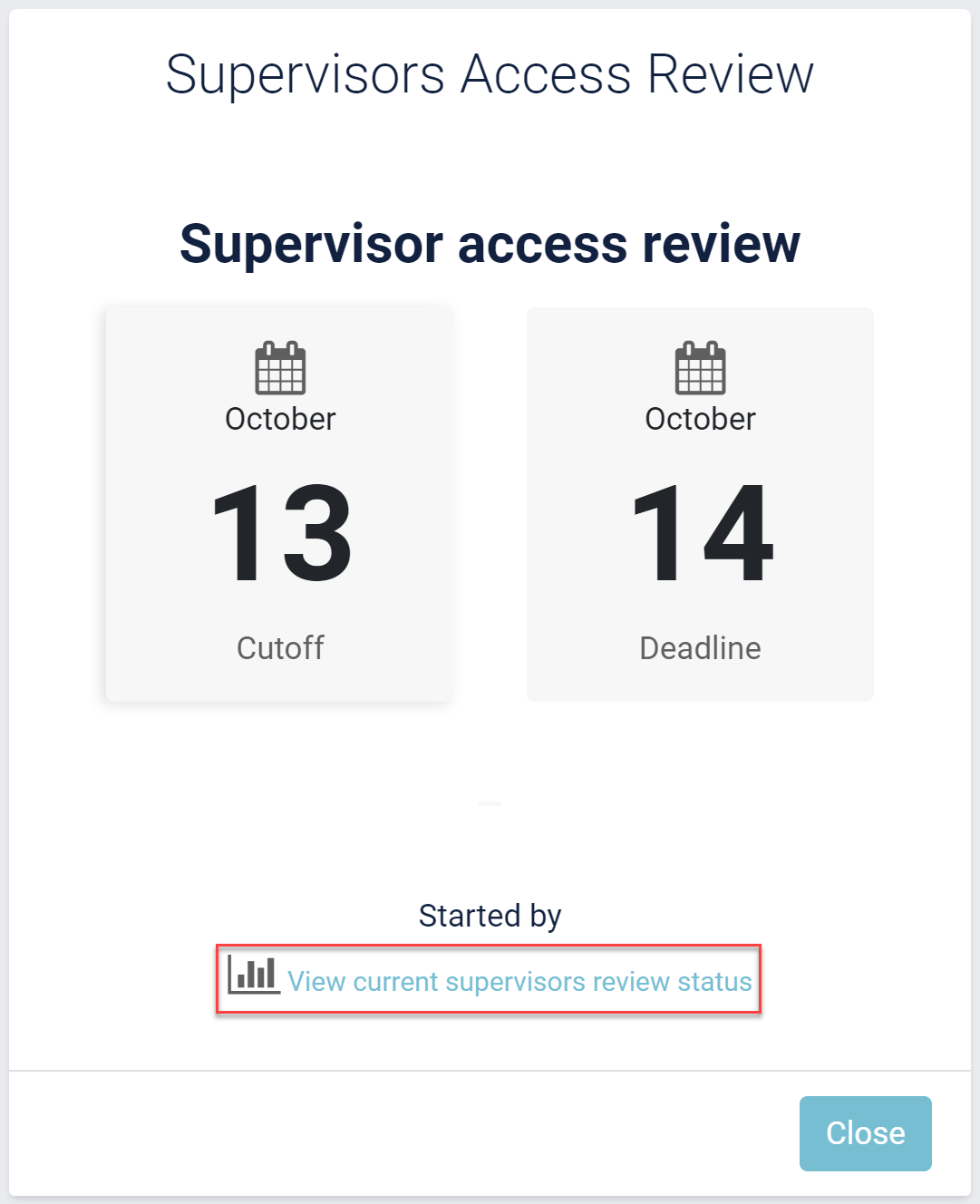
When you click this button, you should be redirected to a page where you will see all statuses and also filter the list of supervisors depending on the status of their access review.
Start a resource owner review campaign
Starting a resource owner access review campaign will send an email to all resource owners requiring them to review all their resources as well as the users that have access to them.
In order to start a campaign, click on the Access Reviews Module in the side bar in order to view the access review page.
Access Review Module
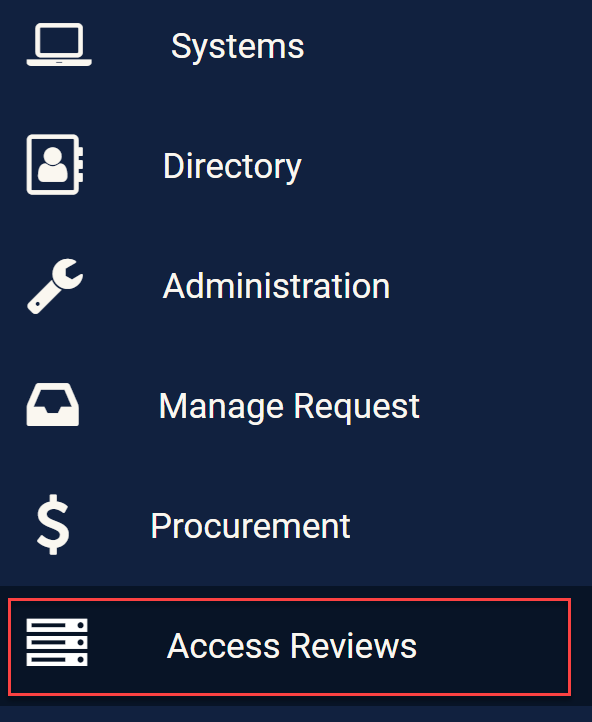
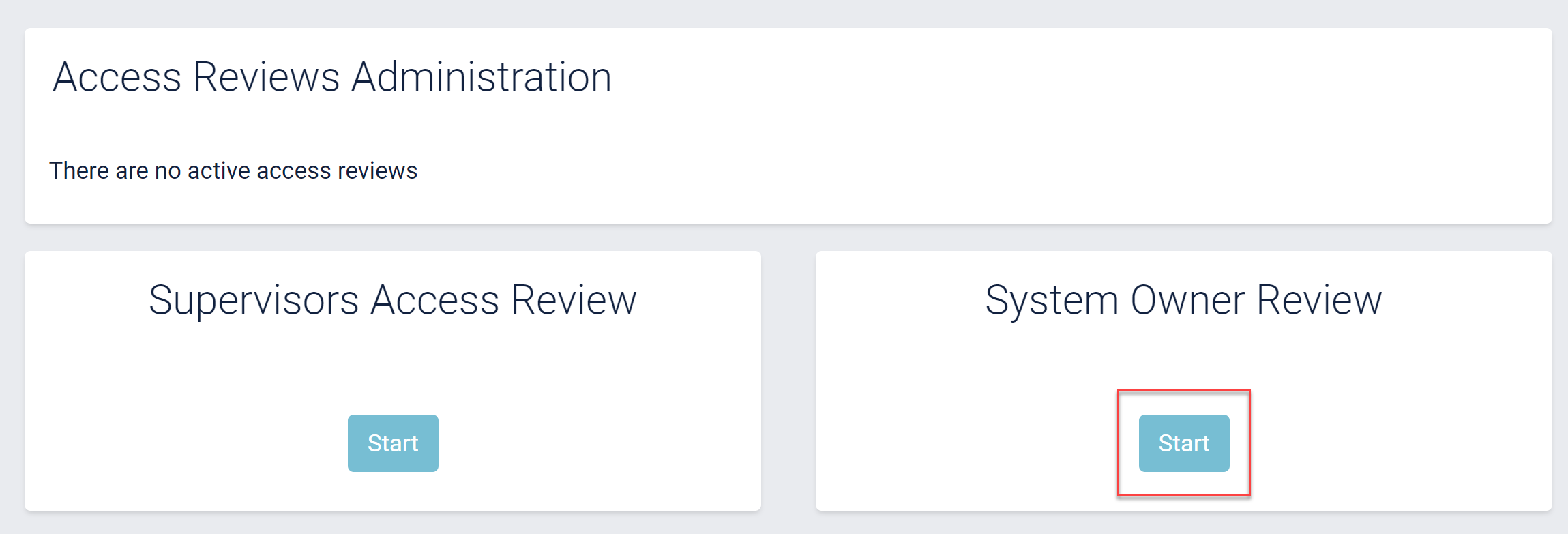
From this page, you should see the two types of Access Review campaigns that you can start.
Click on the start button of the resource owner Access Review section.
Figure 5: Starting a resource owner access review
After clicking the button, you should be able to input a name, description and scope (optional) which allows you to restrict the scope of your access review to a type of resource. You must also input two dates:
- Cutoff date: TBC
- Review deadline date: TBC
After this is done, all supervisors will receive an email to perform their access review.
You can also see the status of the access review by clicking the "View current resource owners review status" button.
Viewing supervisor access review status
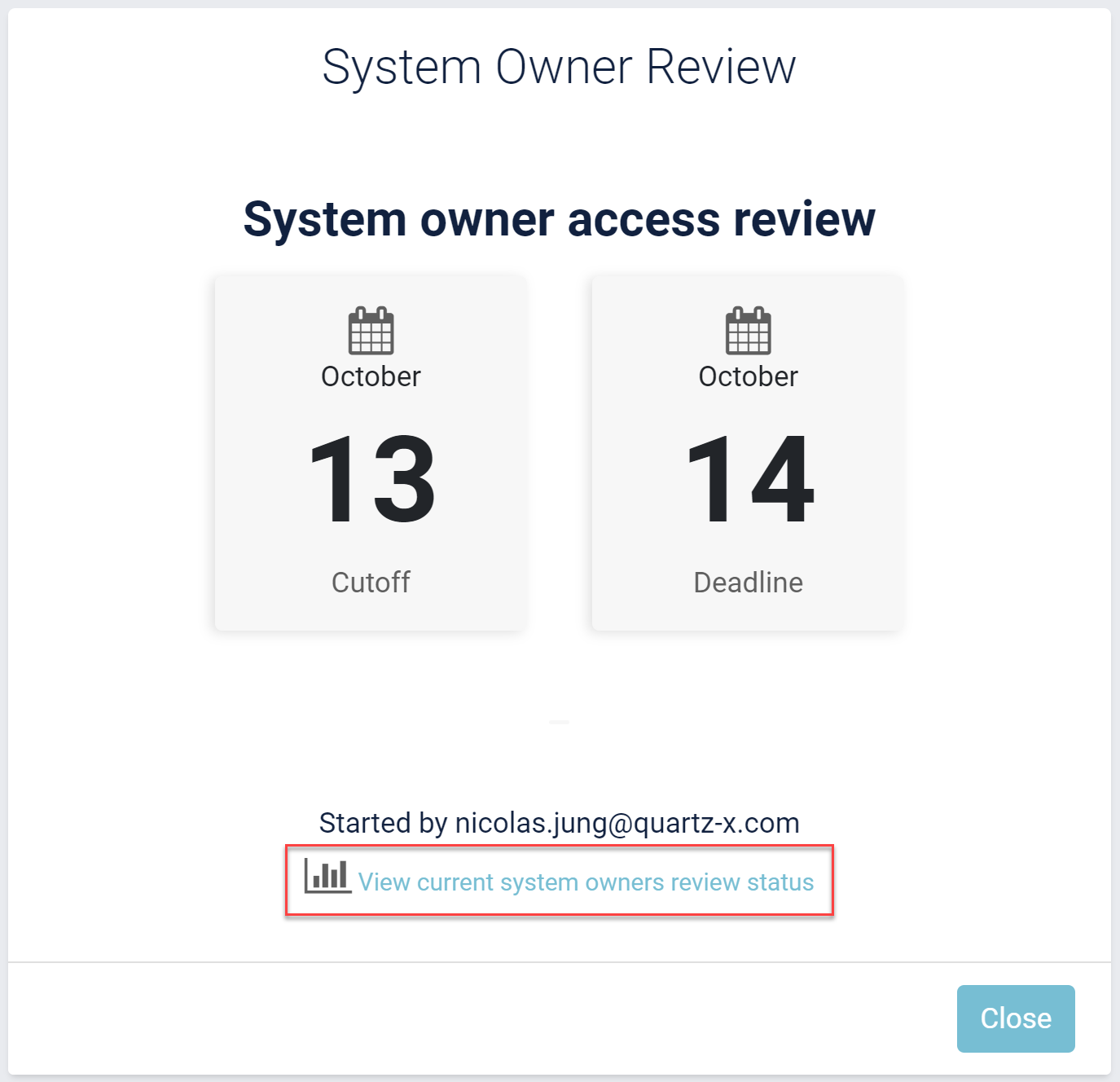
When you click this button, you should be redirected to a page where you will see all statuses and also filter the list of supervisors depending on the status of their access review.
Please note that resource owners can also decommission their resource during this review
Close a supervisor or resource owner access review campaign
You can choose to close a resource owner access reviews at any time.
In order to do this, click on the Access Reviews Module in the side bar in order to view the access review page.
Access Review Module
From this page, you should see the access review campaigns that were started (supervisor, resource owner, or both).
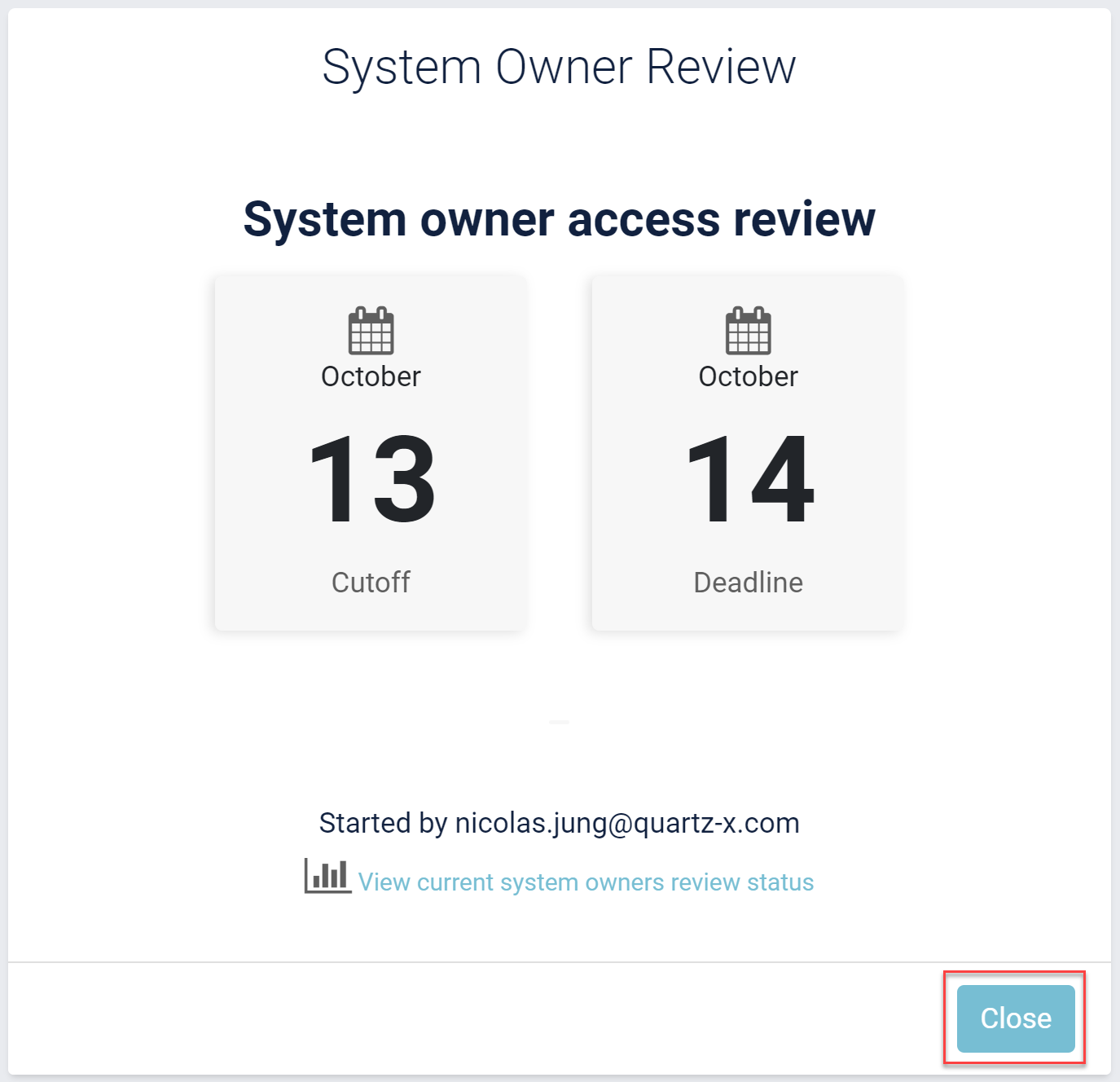
You can click on the close button on the access review campaign that you want to close.
Closing an access review campaign
Send email reminders during access review campaigns
You can send email reminders to resource owners and supervisors during any started campaign.
In order to do this, click on the Access Reviews Module in the side bar in order to view the access review page.
Access Review Module
You should be able to see a "Send Email Reminders" button if an access review campaign is ongoing.
Impersonate a supervisor or owner during an access review campaign
During access review campaigns, you can choose to impersonate a supervisor or resource owner in order to review access for them.
Click on the Access Reviews Module in the side bar in order to view the access review page.
Access Review Module
From this page, you should now see the access review campaigns that were started (supervisor, resource owner, or both).
Click the "View current resource owners review status" button.
Viewing supervisor access review status
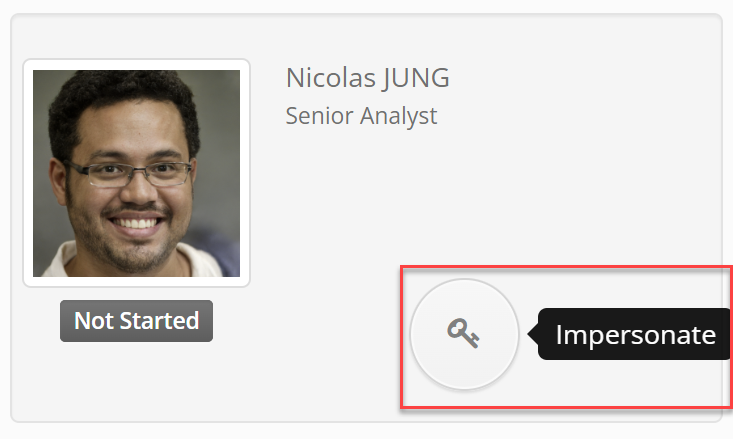
On the page where you see the statuses of supervisors and resource owners, you can click on an employee card. You should see an "Impersonate" button on their employee card.
Impersonate resource owner
You can now review the resources and accesses for the user you are impersonating. If you need more information on how to perform the review, you can have a look on our detailed guides on how to review accesses as a resource owner or review accesses as a supervisor.