Resources and Accesses management
QuartzID allows you to view and manage resources (depending on your role) and the different accesses related to them. In the dedicated module, you can also navigate through resources in order to create an access request.
Navigating through resources and accesses resource types Creating a new resource (requires Admin role) Creating a resource role (requires Admin role) resource Roles (and Pre-Authorization) Modifying a resource or a resource role (requires Admin role)
Navigating through resources and accesses
In order to view all resources and accesses, first click on the resources module in the side menu.
resources Module (old / new interface)
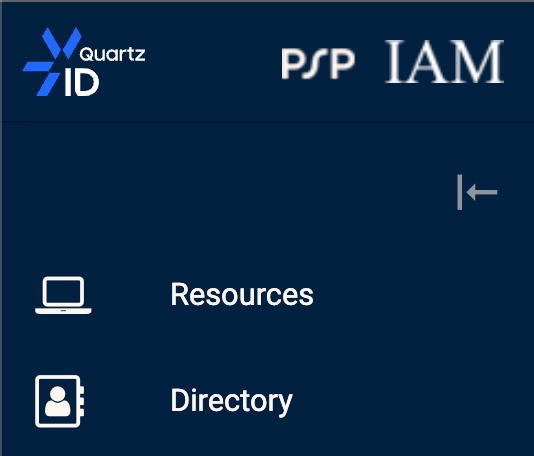
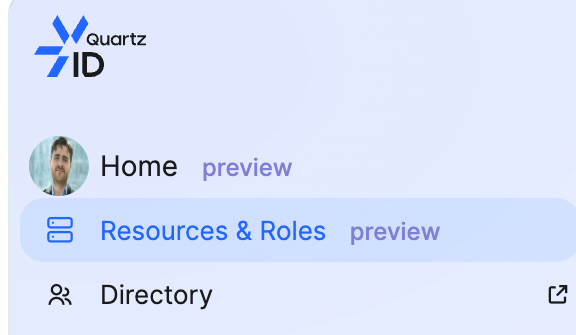
You should then see a list of all the resources of your organization. You can reduce this list using the filters on the left of the screen.
resources list
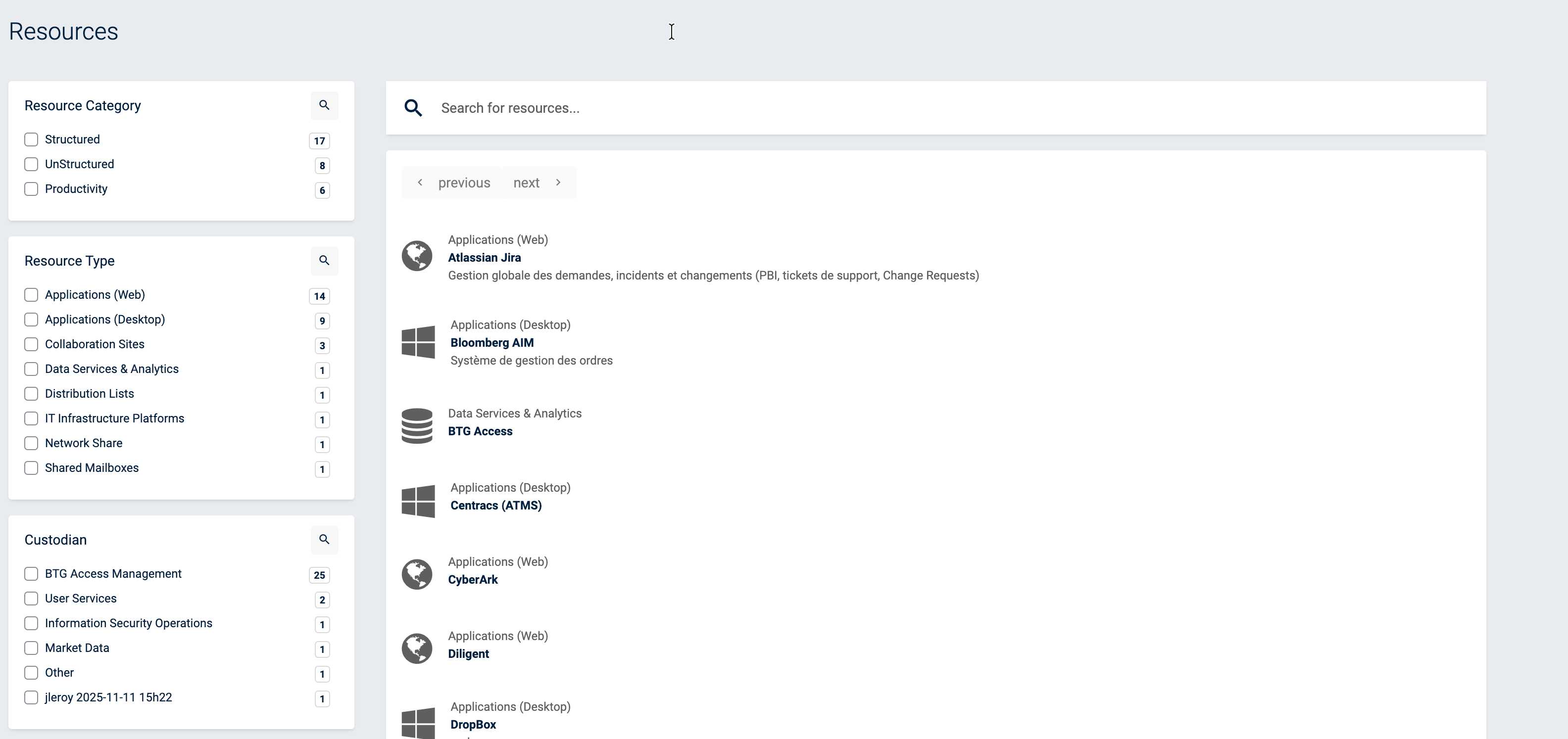
In order to see the details and accesses of a resource, click on its name in the list.
resources details
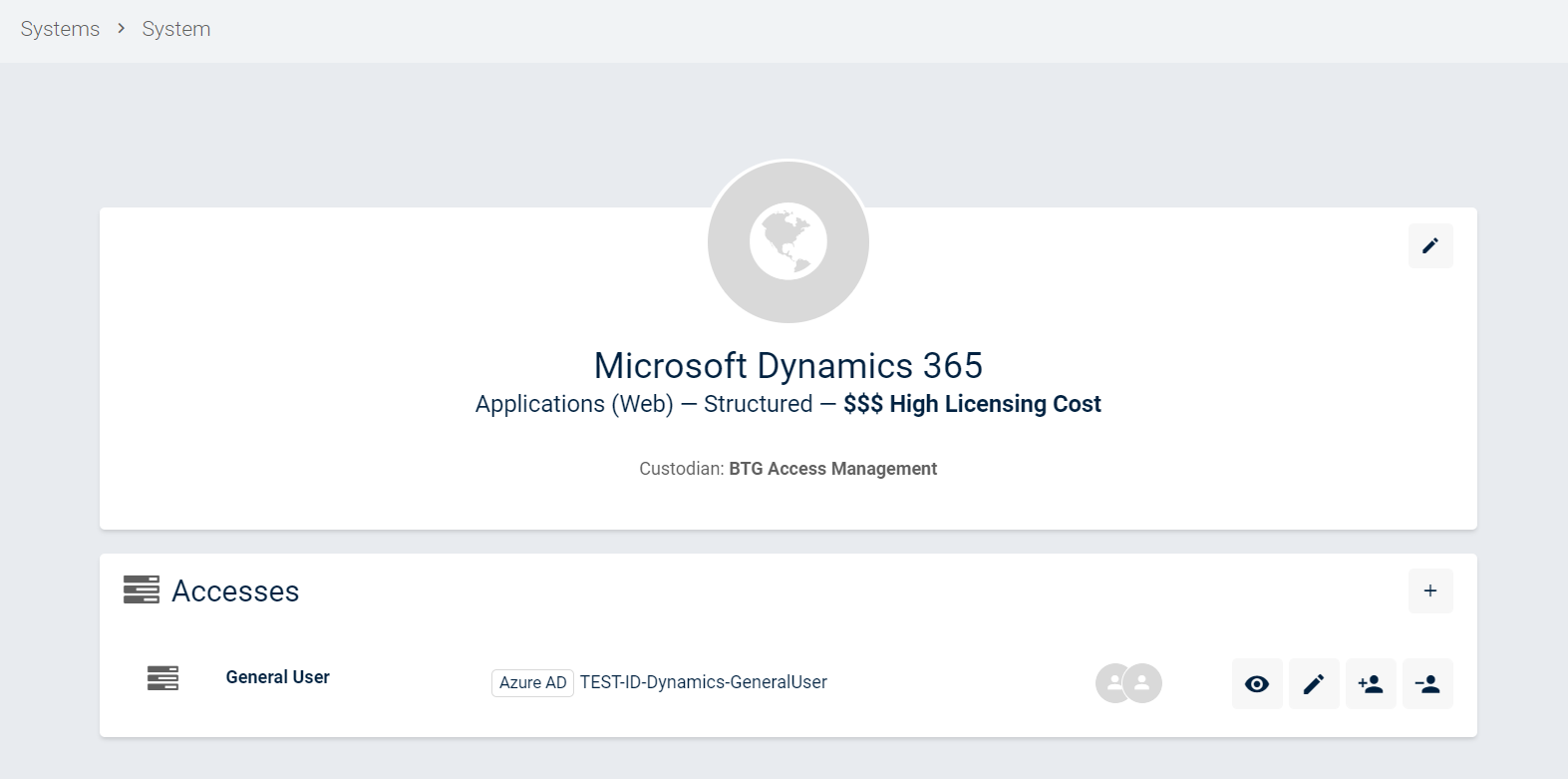
On this page, you can now see all information related to this resource as well as its accesses. For each access, you can see its type (Azure AD, AD, etc.) as well as the persons that are in this access group.
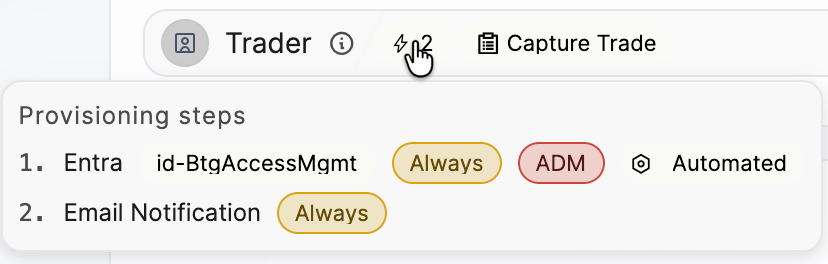
You can also see the provisioning steps by clicking the eye icon.
Provisioning steps (old / new interface)
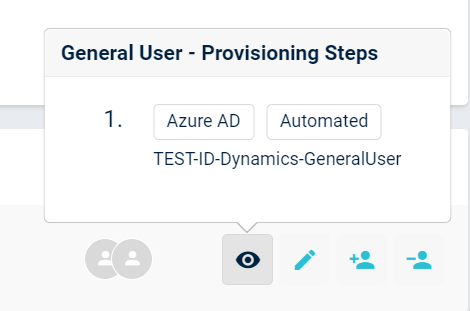
With the "+" icon you can add this access to your shopping cart. You can also remove this access by clicking the "-" icon (access cart will have to be submitted to apply these changes).
resource types
Two types of resources exist in QuartzID. Structured and Unstructured.
Structured resources Many resources have well defined user profiles for which it is possible to know the detailed actions, access level and specific data that they provide access to. These “profiles” are called “resource Roles” in IAM.
For these resources, it is possible to map the resource roles to the actual business task catalog. For instance, a resource role named XX-Trader in the aforementioned trade capture resource example, could allow employees to capture a cash product trade in the resource and to modify such type of trades. Another resource role could be called YY-BackOffice and allow employees to confirm cash product trades and view cash flows in the resource.
Mapping roles to these tasks allow for the enforcement of segregation of duties principles. Supervisors are responsible to approve the requests on Structured resource. It is also possible to add a Role owner, that would also approve the request (after the Supervisor). The Role owner approval is configured upon assessment of the business need.
Unstructured resources Unstructured resources encompass all other resources for which it is impossible to predict, control or know in advance the detailed nature of the data that they will contain. As such, it is not possible to map the resource roles of these resources to business tasks and enforce business task conflicts.
We therefore rely on resource owners of these resources to approve or deny access to these resources, since they are deemed to have the most knowledge of their content and data. They have the responsibility to decide whether access should be granted or not. Some examples of unstructured resources: Datamarts, Network Shares, Distribution Lists, Shared Mailboxes, Collaboration Sites, etc.
resource Characteristics
| Characteristics | Structured | Unstructured |
|---|---|---|
| resource Roles | X | |
| Known Data | X | |
| Segregations of duties analysis | X | |
| Supervisor approval | X | |
| Role Owner | X (when required) | |
| resource Owner Approval+ | X |
Creating a new resource (requires Admin role)
In order to add a new resource to QuartzID, hover your mouse over the resources module in the side menu. If you have the Admin role, you should see an option to create a new resource.
New resource button

When clicking the New resource button, if an editing session doesn't already exist, a modal will be displayed in order to create a new editing session.
An editing session is required to create a new resource. This editing session will require an approval from another Admin user. Please note that there can only be a single editing session at a time. This editing session is necessary to add and edit resource, resource roles, SoD conflicts and preauthorizations.
You should then be redirected to a page where you can input the information of the resource you want to create.
resources creation form
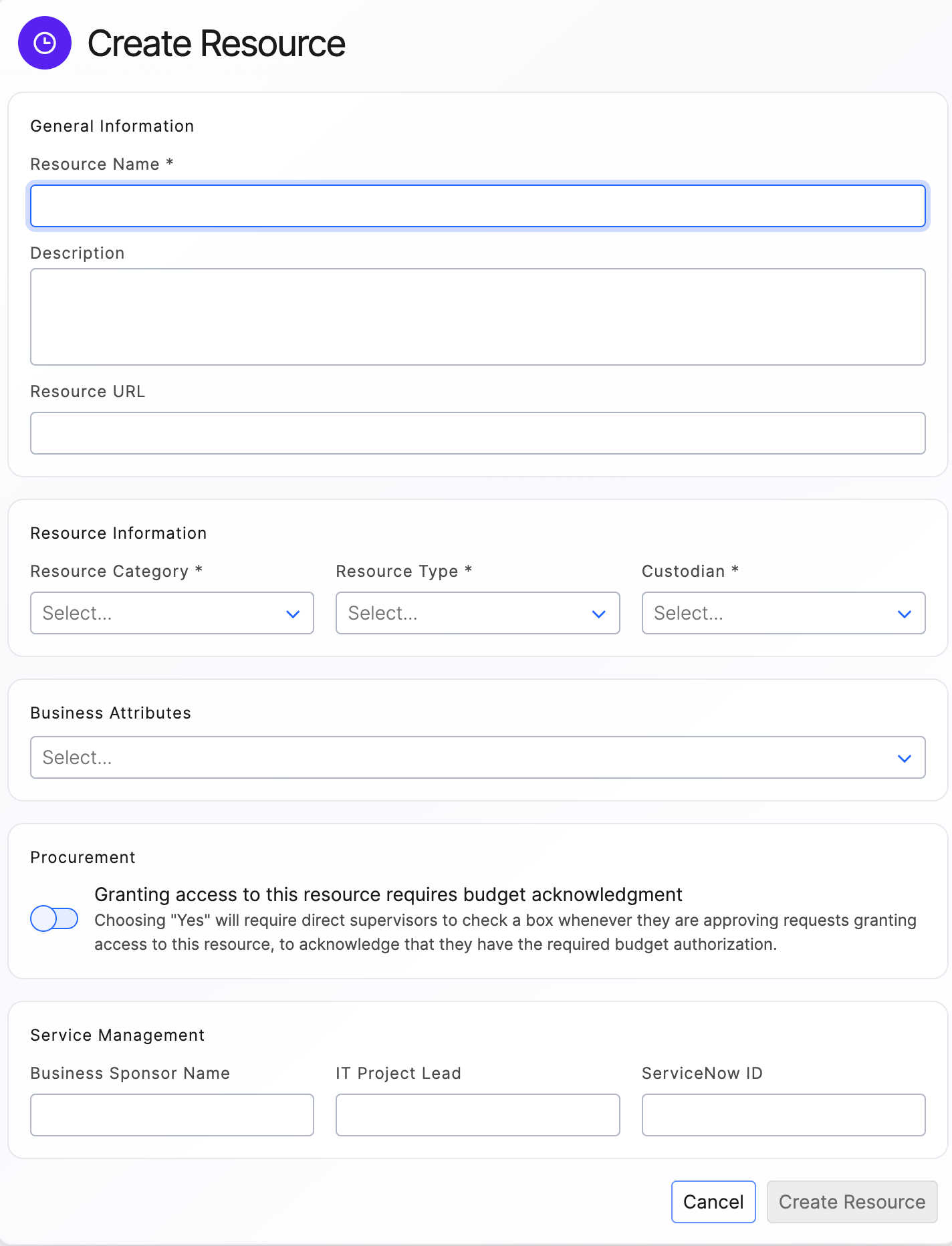
Please note that the resource Category field can change the process of the access request workflow, and that the Procurement section, if enabled, will also add a validation step by the procurement team for access requests of this resource.
After creating your resource, you will then need to create resource roles (detailed below).
Creating a resource role (requires Admin role)
To create a resource role, if you just created your resource, you should be able to click on "New Access".
resource modification page
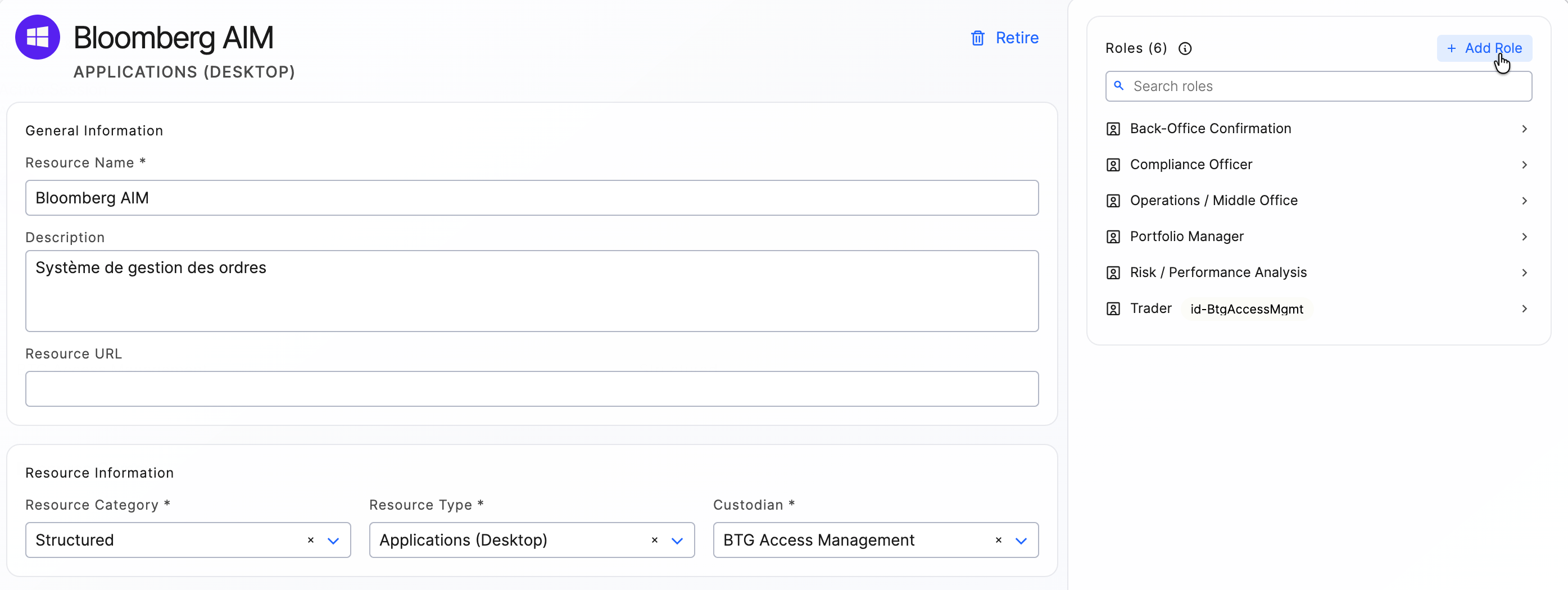
If you want to create a resource role on an existing resource, you can use the "+" button on the resource's detail page.
resource detail page
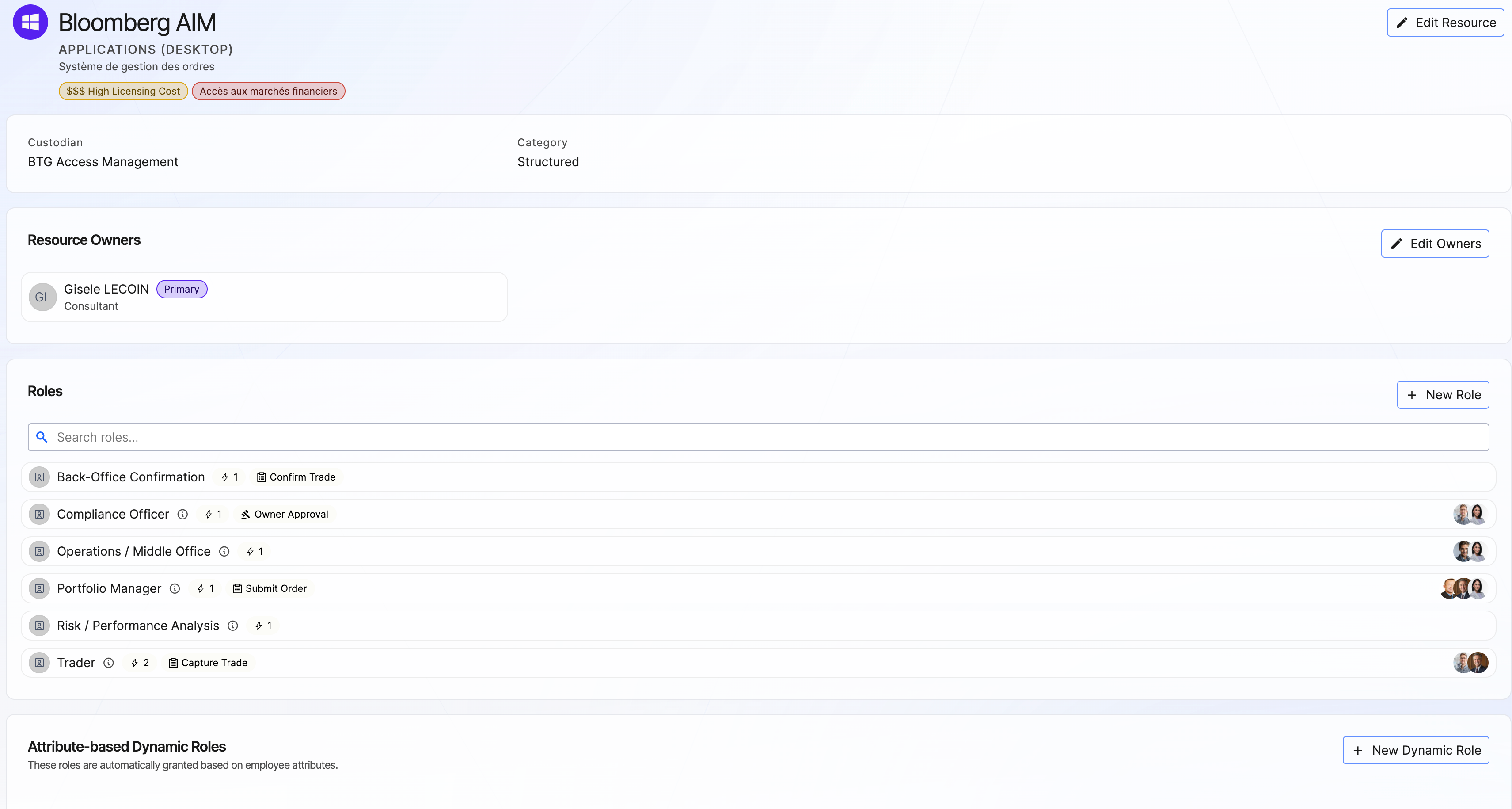
You can then input the resource role details. You can also specify if the access is High Privilege, available to External Identities or if it requires a resource owner approval for its access requests.
Once you have validated your changes, you should be redirected to a page where you can either add a new access or the provisioning steps for the new access.
For any new access you must add provisioning step for your role.
Provisionning step
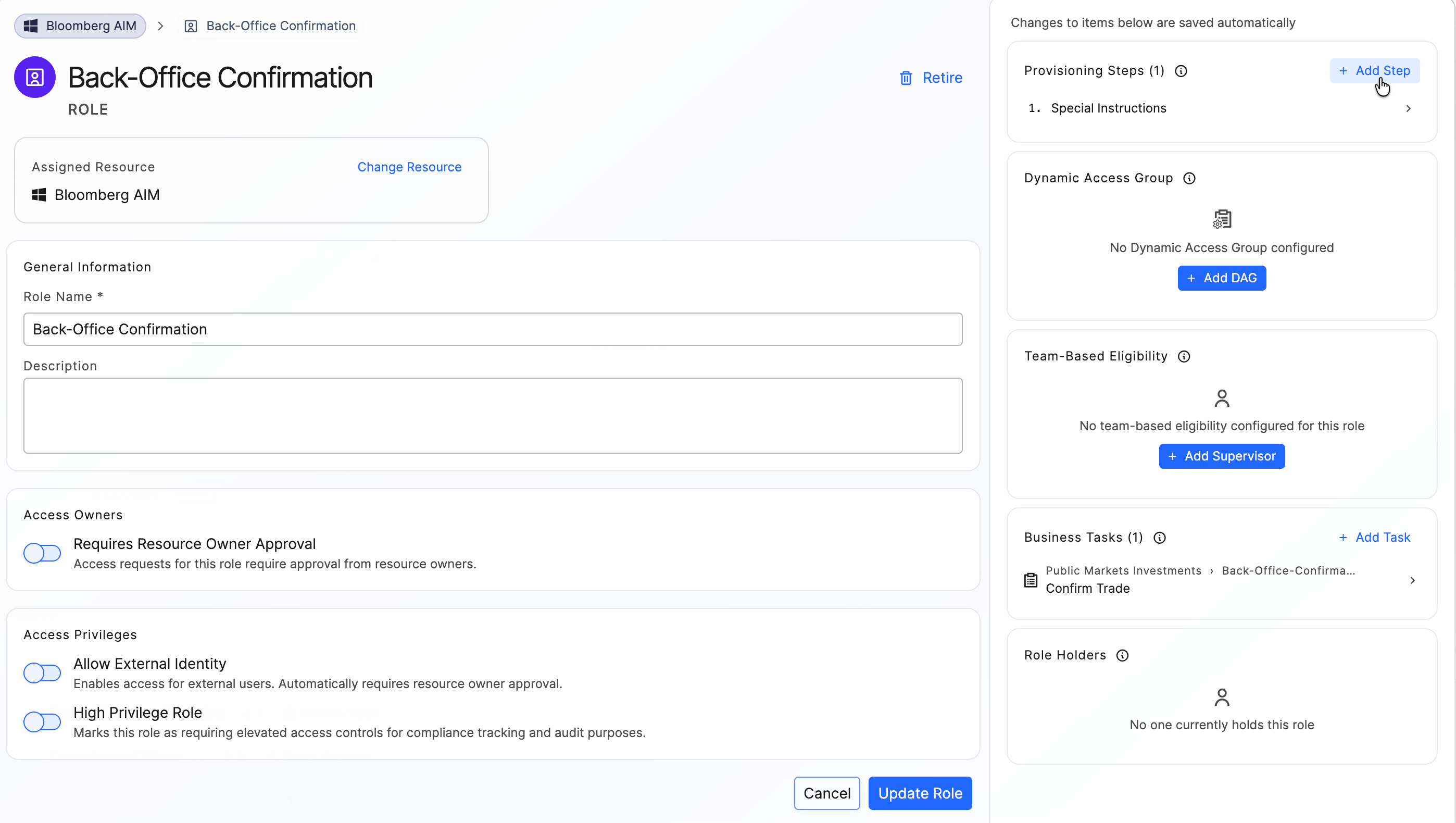
The provisioning steps can be of type:
- Azure AD group (automatic provisioning)
- AD group (automatic provisioning)
- ESB (automatic provisioning)
- resource account (manual provisioning)
- resource provisioning (manual provisioning)
- Special instructions (manual provisioning)
- Account creation (automatic provisioning)
The provisioning steps must also be validated by another Admin user.
resource Roles (and Pre-Authorization)
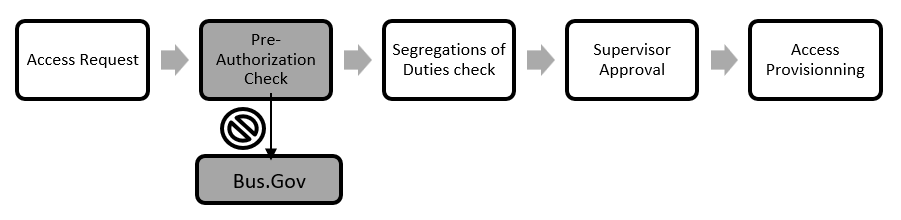
An access can be pre-authorized when a specific resource profile is required for a user to perform its usual business tasks (long term), hence the need-to-know and least privileged principles. The pre-authorizations are defined during the permission model design (and throughout the life cycle of the resource) by the resource owner, with the support of BTG.
This allows a user, to simply submit the access request, and gain access without going through the approval of the resource owner. In other words, it accelerates access provisioning. If the supervisor is not pre-authorized for the resource role requested by its employee, BTG is responsible to review the demand.
resources Role and Pre-Authorization chart
Modifying a resource or a resource role (requires Admin role)
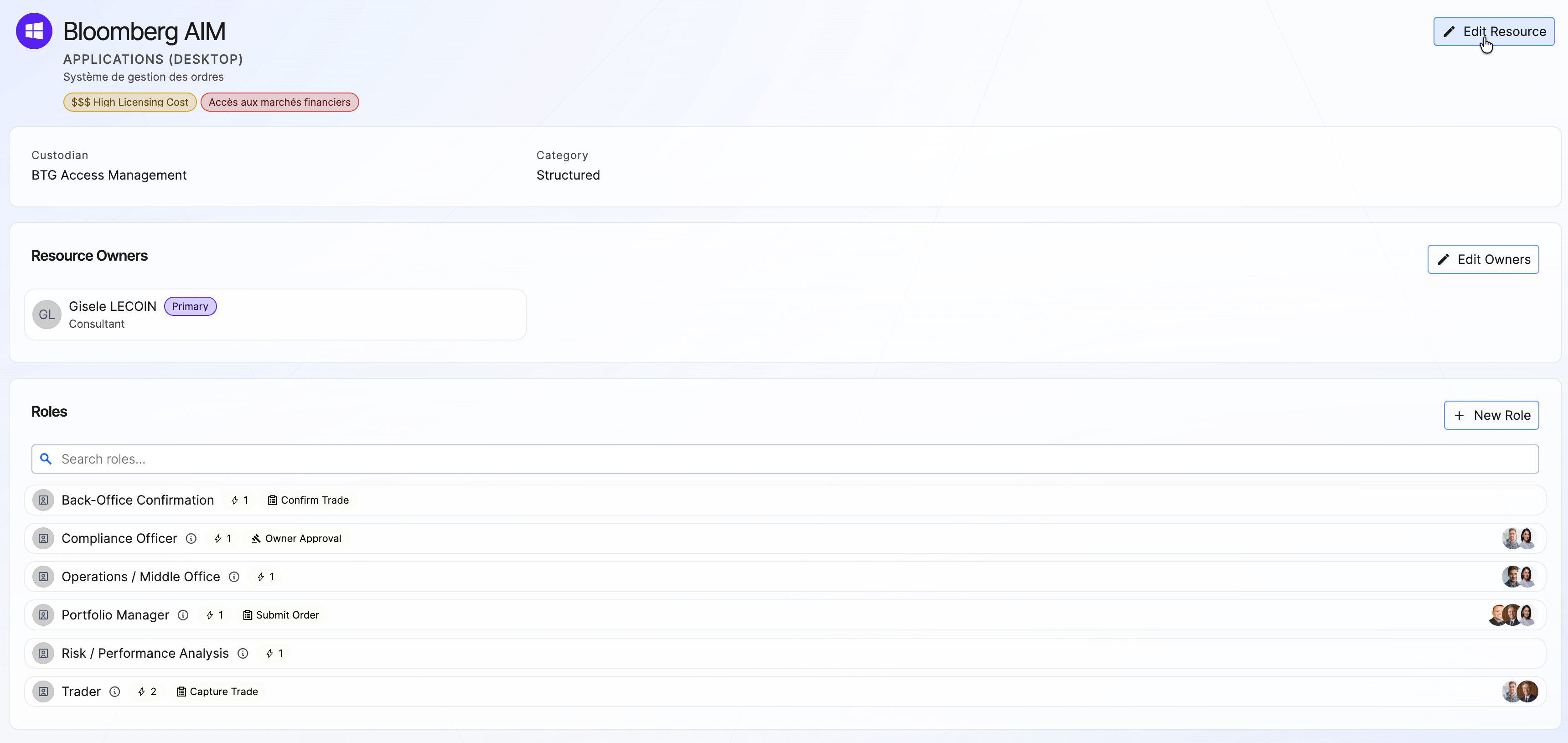
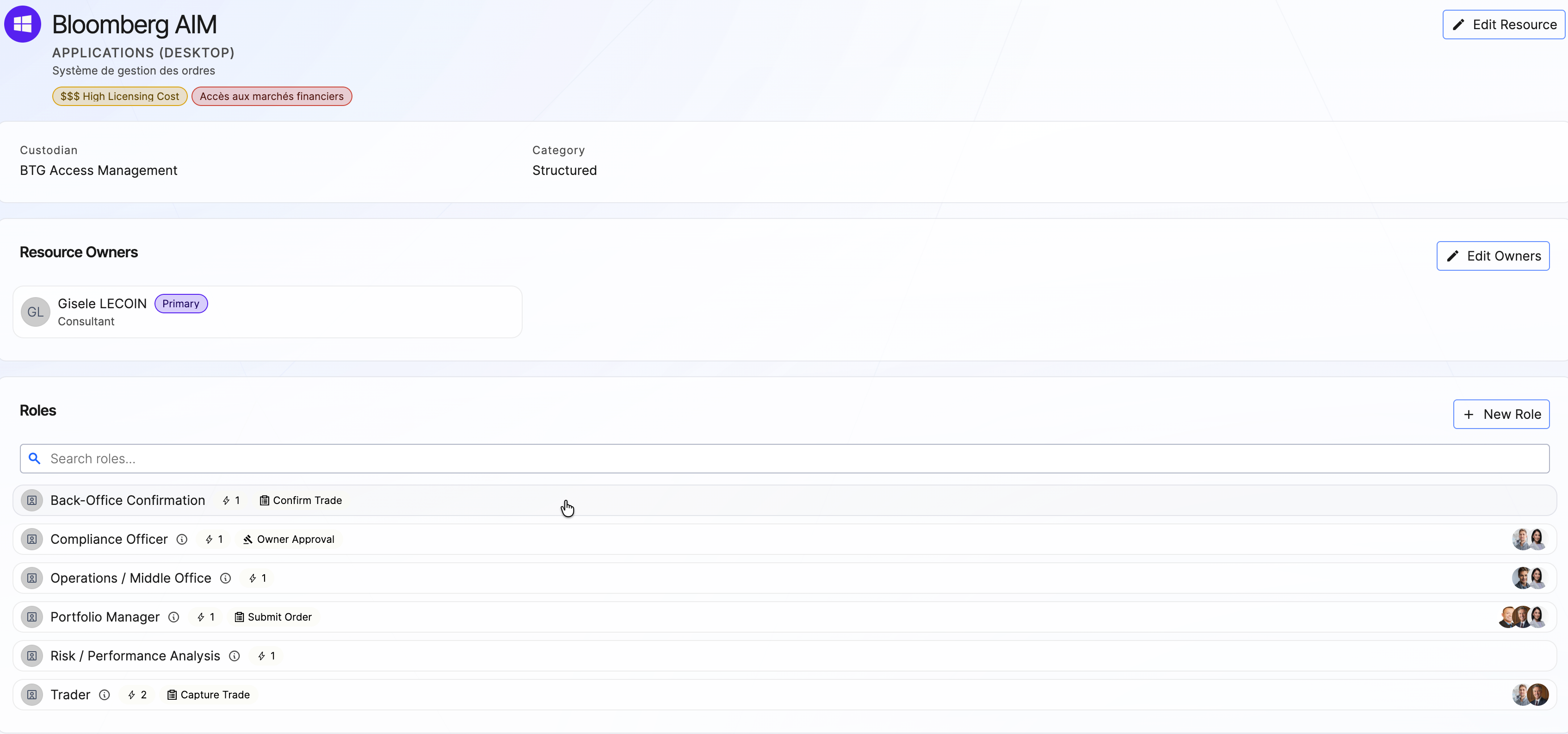
You can also modify a resource and a resource role by navigating to the resource details page. In order to modify the resource, you can click to the edit button next to the resource name. This also allows you to add a resource owner.
resource details page
You can also modify a role and its access provisioning step by clicking on it.
resource details page
These modifications must also be validated by another Admin user.