Control Center
The Control Center allows you to view all events and workflows as well as their states. You can also see all errors in workflows and take action on workflows if necessary. Accessing this page requires the Admin role.
View all events Manage employee arrivals, transfers, and departures Detect errors on workflows
View all events
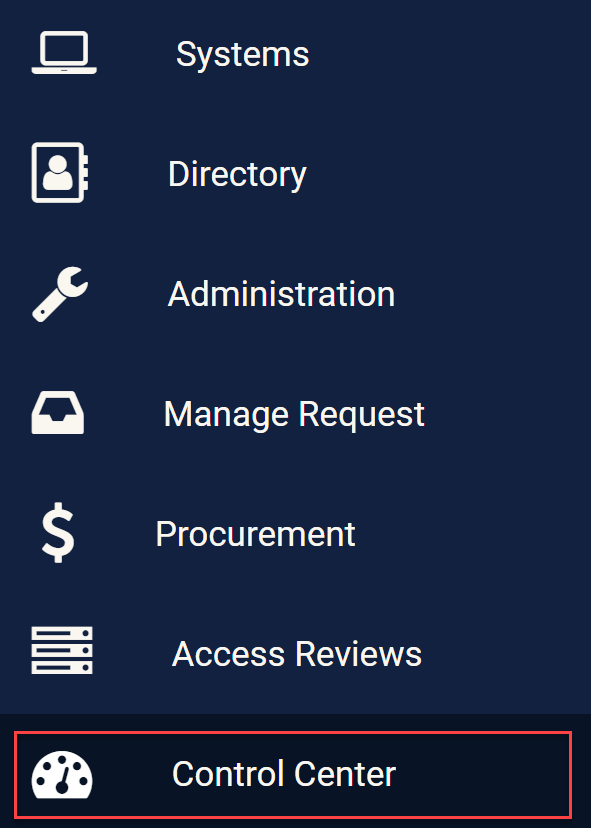
To view all events, you must click on the Control Center Module.
Control Center Module
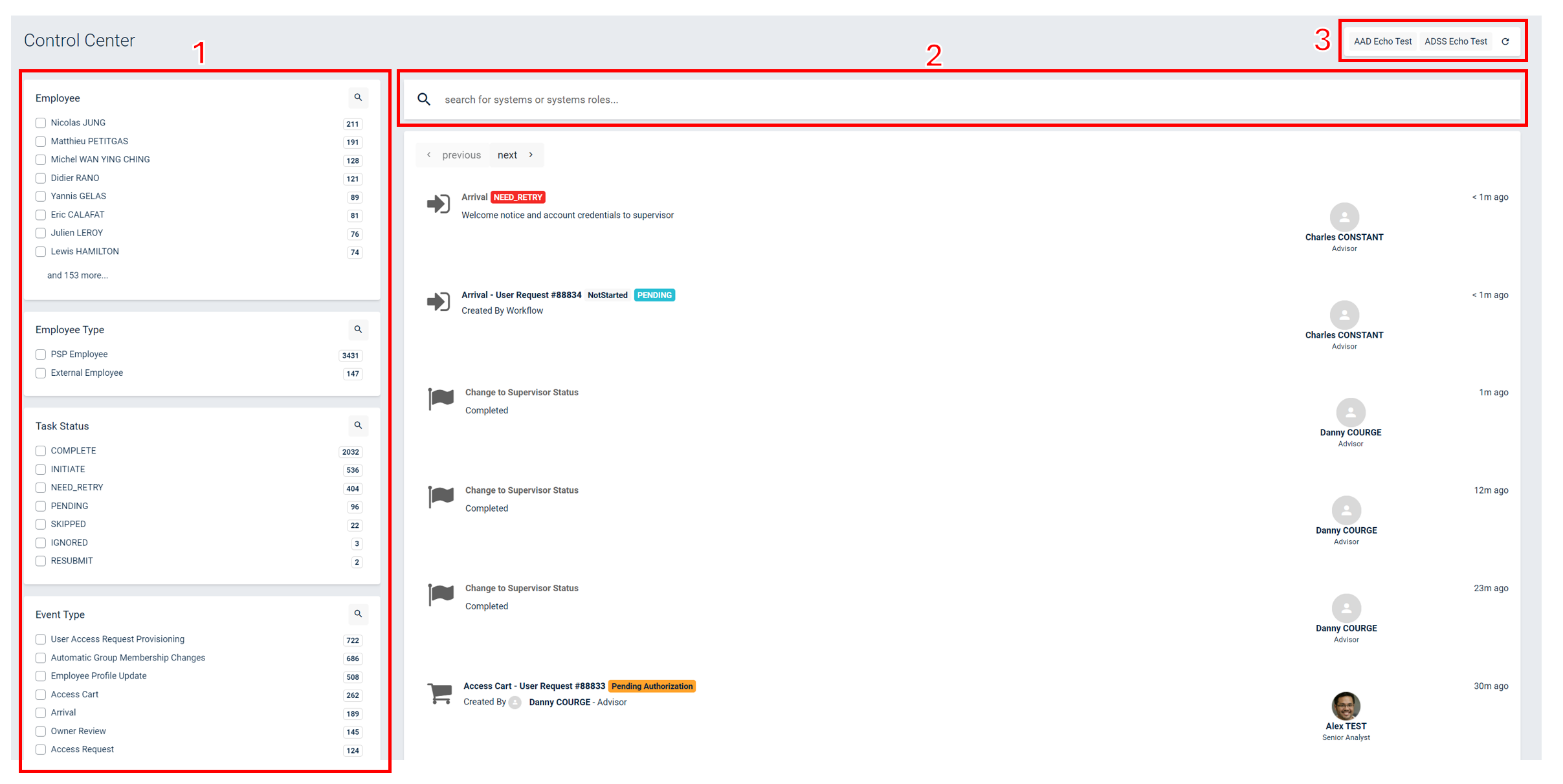
From this page, you should see a list of all events. You can filter (1) using employee names, types of events, event status, and errors. You can also search a specific event using the search bar (2) and refresh the list if necessary (3).
Control Center view
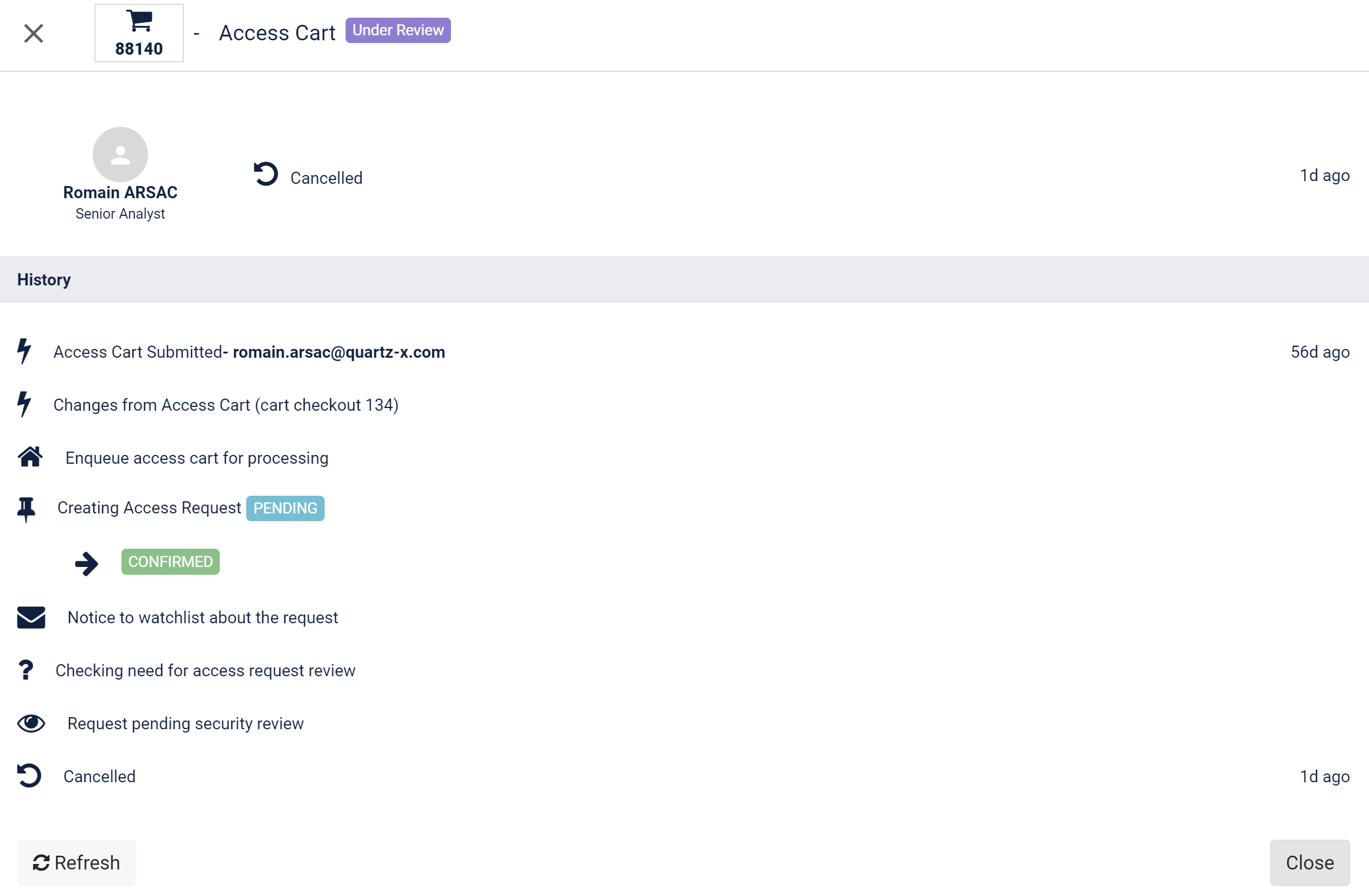
For each event, you can click on the card and see the details of the event workflow. Some action buttons might be available depending on the event type and state (for example, for arrivals, transfers and departures, or for workflows in NEED_RETRY status).
Control Center event details
Manage employee arrivals, transfers and departures
When the HR team validates arrivals and transfers, an Admin needs to take a specific action in the Control Center to proceed with the workflow.
Employee arrivals
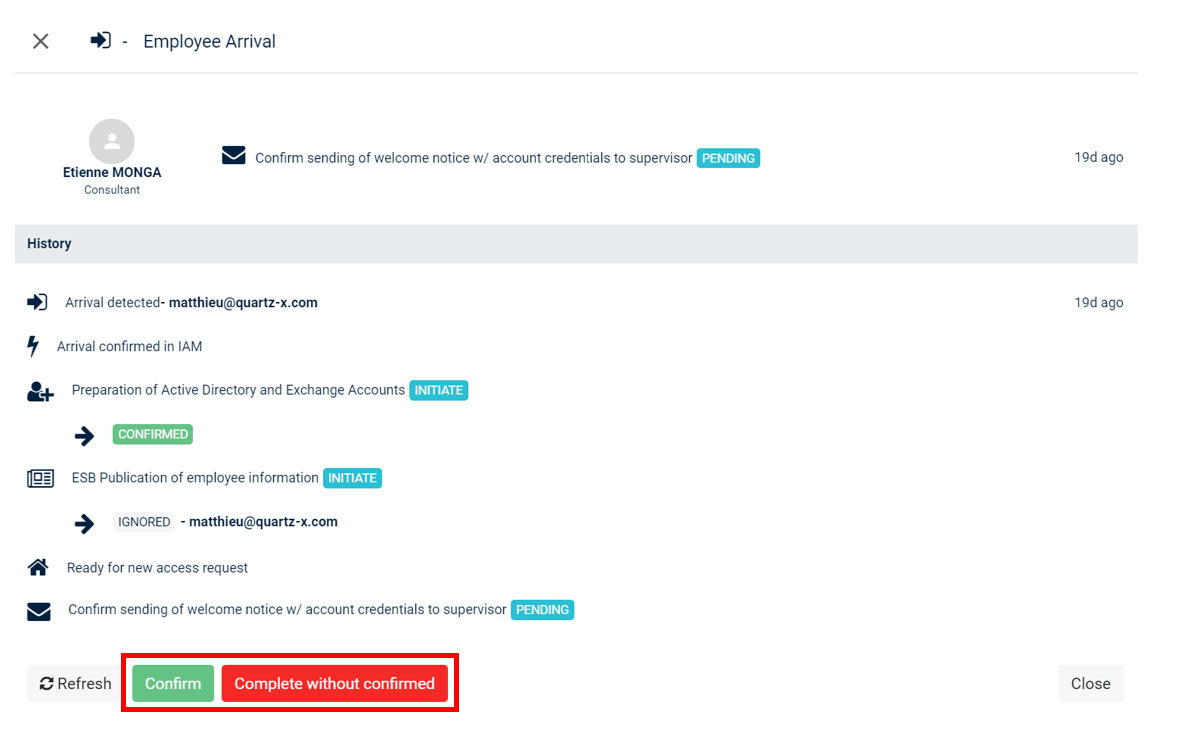
For employee arrivals, an Admin needs to confirm the sending of the welcome notice to the supervisor. You can also complete the arrival without sending the welcome notice.
In the Control Center, filter the events on Arrivals using the Event type filter.
Arrivals filter
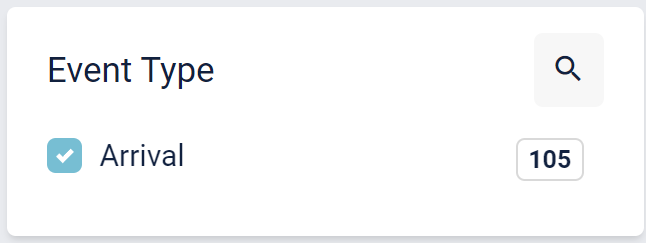
Click on the arrival that you wish to manage.
Arrivals details

You can now choose to confirm the sending of the notice (Confirm) or complete the arrival without sending the notice (Complete without confirmed) using the buttons at the bottom of the screen.
Arrivals actions
Employee transfers
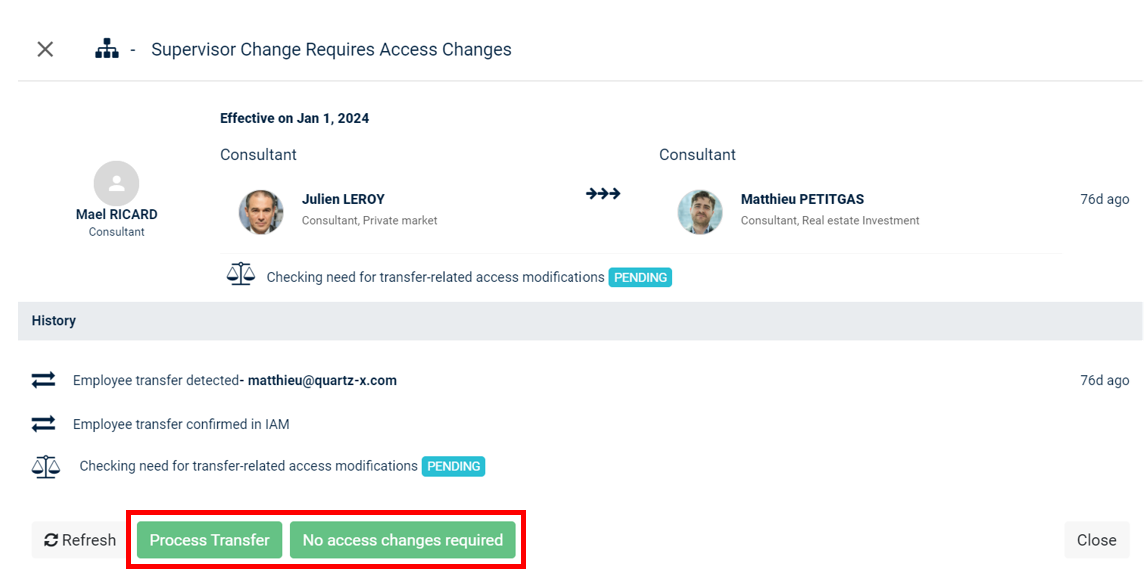
For employee transfers, an Admin needs to confirm transfers after HR validate the change.
In the Control Center, filter the events on Transfer using the Event Type filter.
Transfer filter
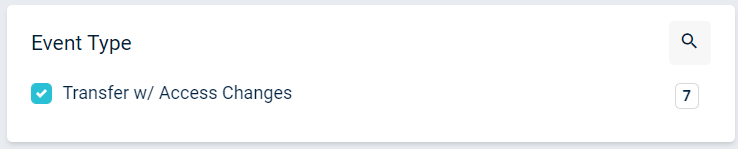
Click on the transfer that you wish to manage.
Transfers details

You can now choose to confirm the sending of the notice or complete the arrival without the sending of the notice using the two buttons at the bottom of the page.
Transfers actions
Detect errors on workflows
The Control Center also allows Admin users to detect errors on workflows. Depending on the error and type of workflow, you can take specific action.
In the Control Center, filter the events on NEED_RETRY using the Task Status filter.
NEED_RETRY filter

You can then select the event that you want to view.
NEED_RETRY details

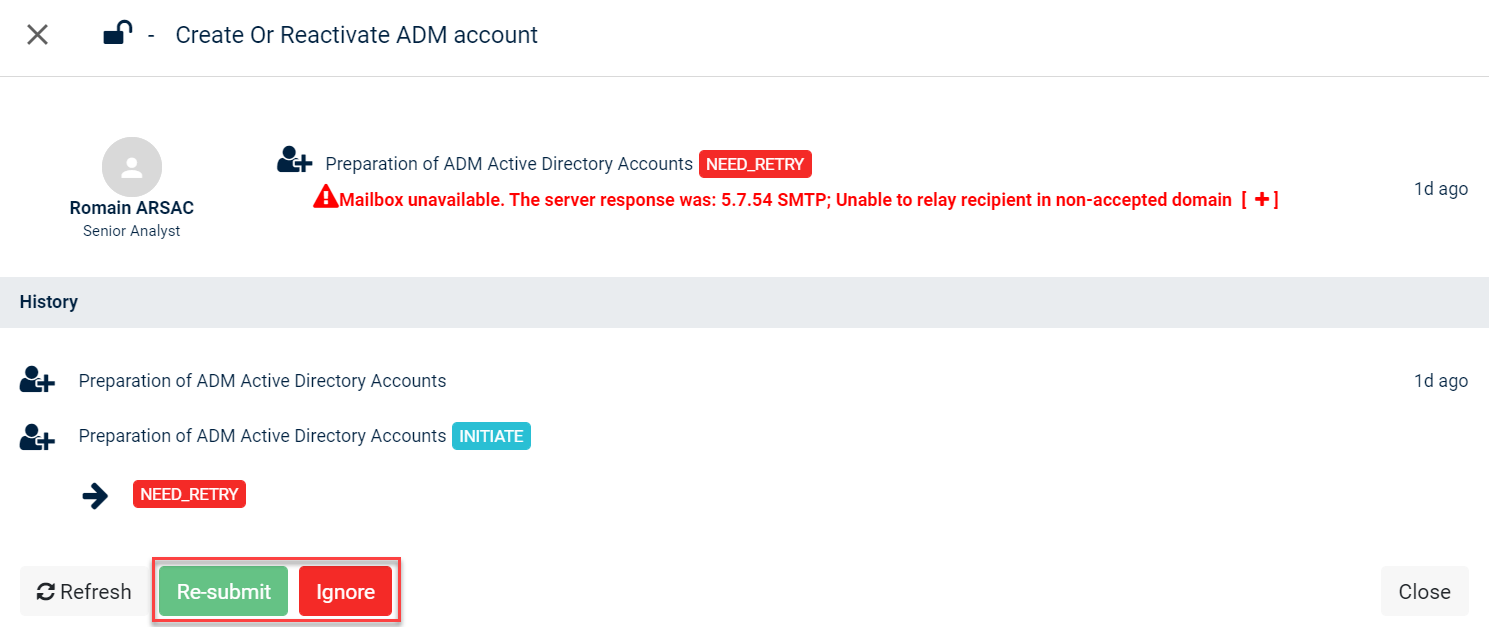
You should then see the details of the error and take action depending on the type of event.
NEED_RETRY actions