Manage Request
The Manage Request module allows you to process, edit or assign requests for your custodian team. In order to see this module, you must be in one of the custodian roles or have the Admin role.
View all requests Process a request Cancel a request Assign a request
View all requests
In order to see all requests as a custodian, you can click on the Manage Request module in the left side menu.
Manage Request module
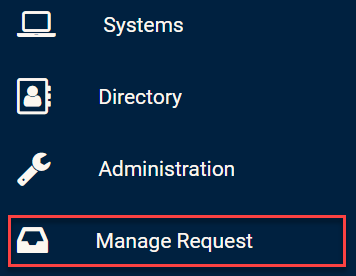
This should send you to a page with all access requests to be processed by your custodian team.
From this page, you can filter requests depending on their status, or their type of assignment.
Filtering the request list
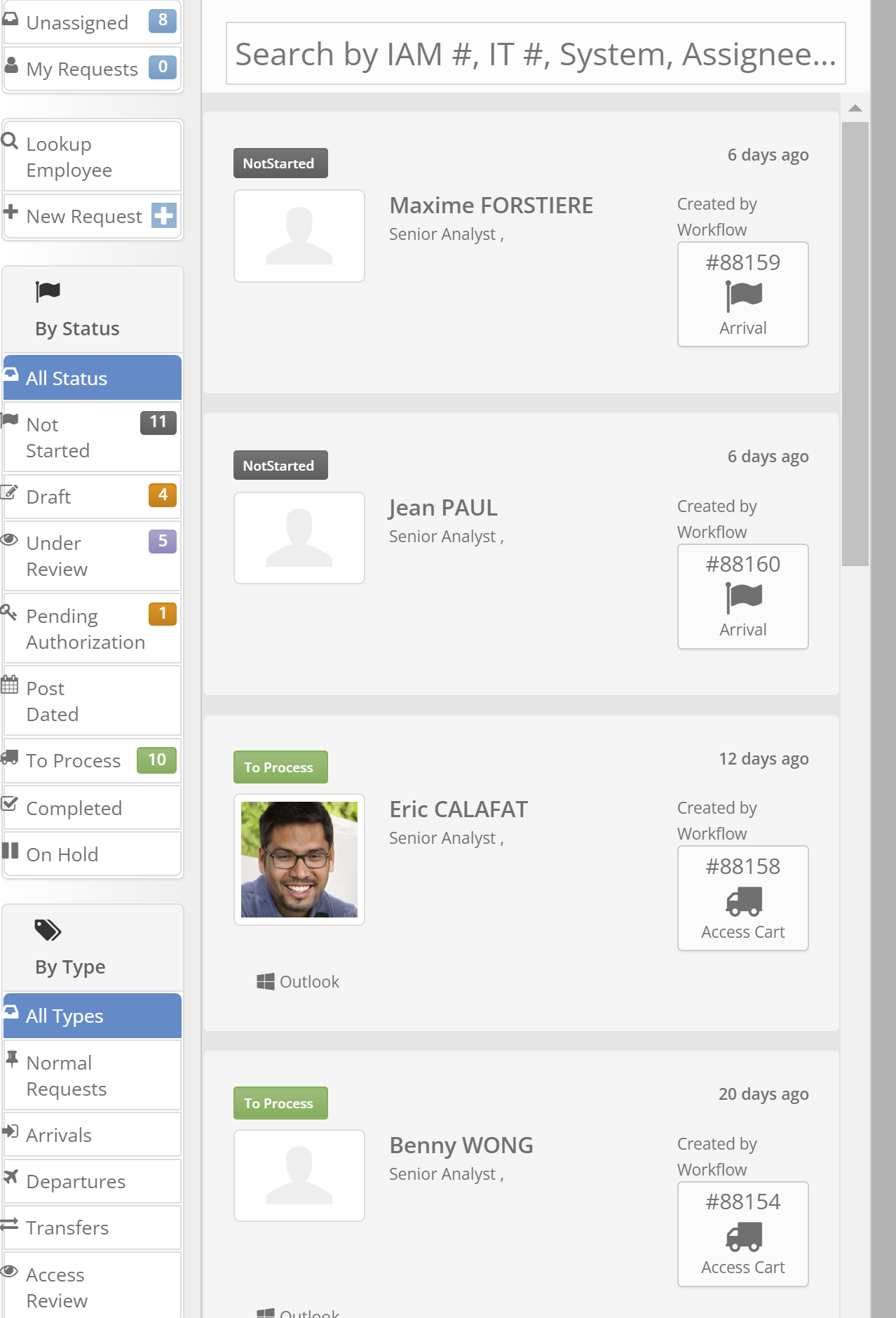
Request statuses represent the state of the request.
Process a request
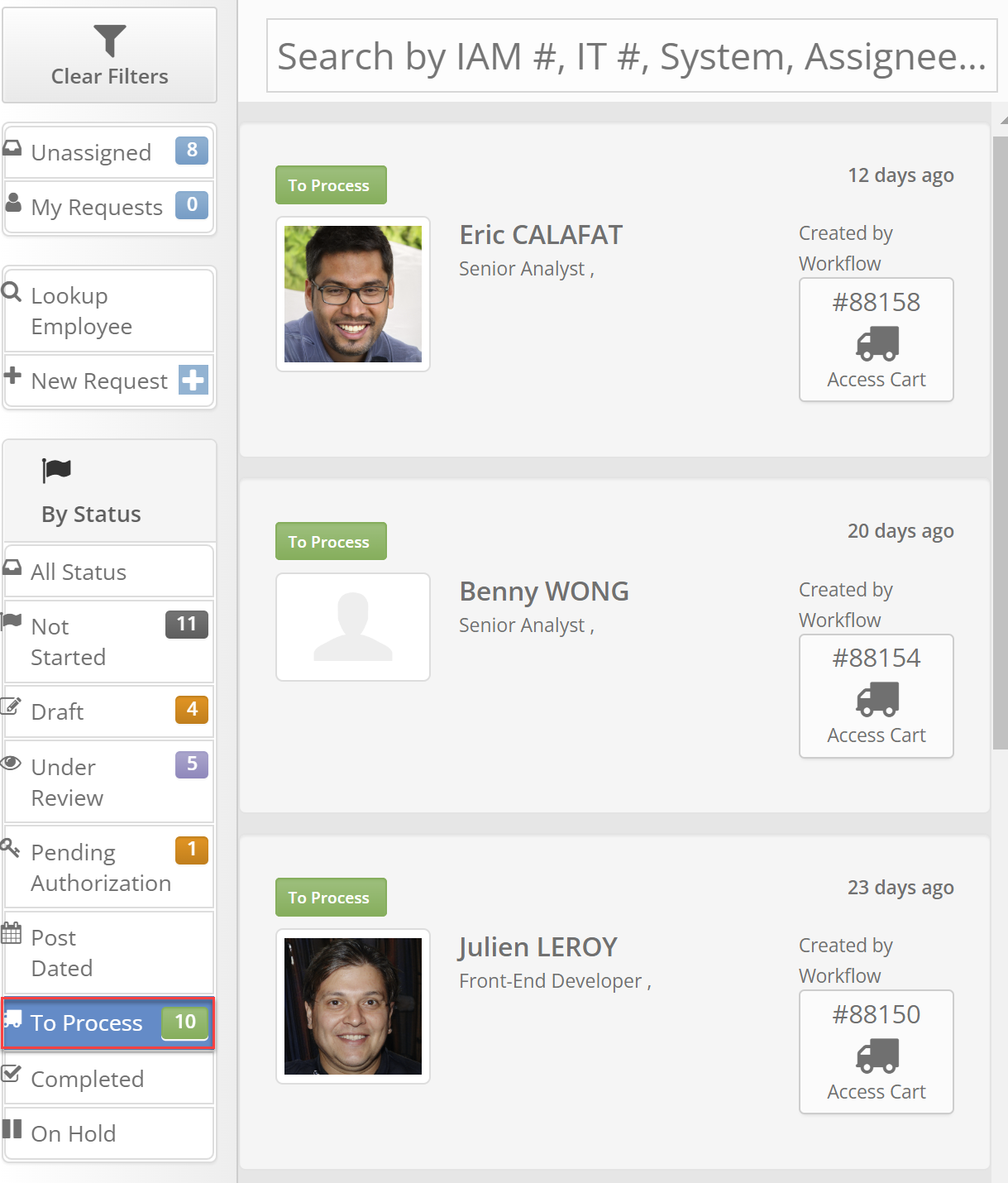
If you would like to process a request, you can go the Manage Request page and filter the requests by status "To Process" in order to see all requests that need to be processed by your custodian team.
List of requests ''To Process''
An alternative way to access a specific request to process is to navigate to your profile where you should have a custodian task under the My Tasks section.
My tasks view CAPTURE
From this section, you should see the card of the request you want to process. You can click on it and click on the lightning icon.
Process request view
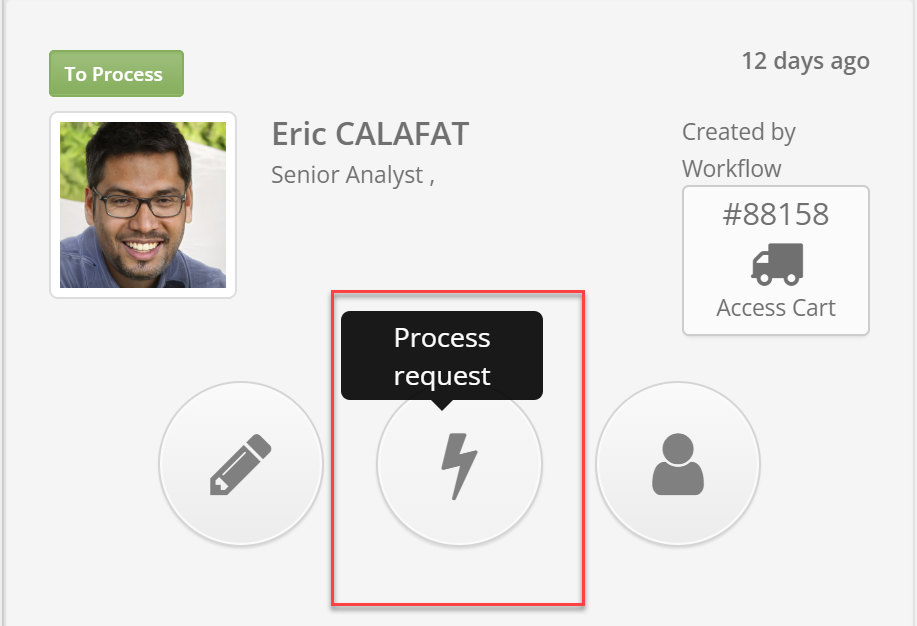
After clicking the lightning icon, you should see all the accesses in the request, as well as the different provisioning steps. For each step, you can view the custodian as well as the action section where you can take action depending on the provisioning steps.
Provisioning steps
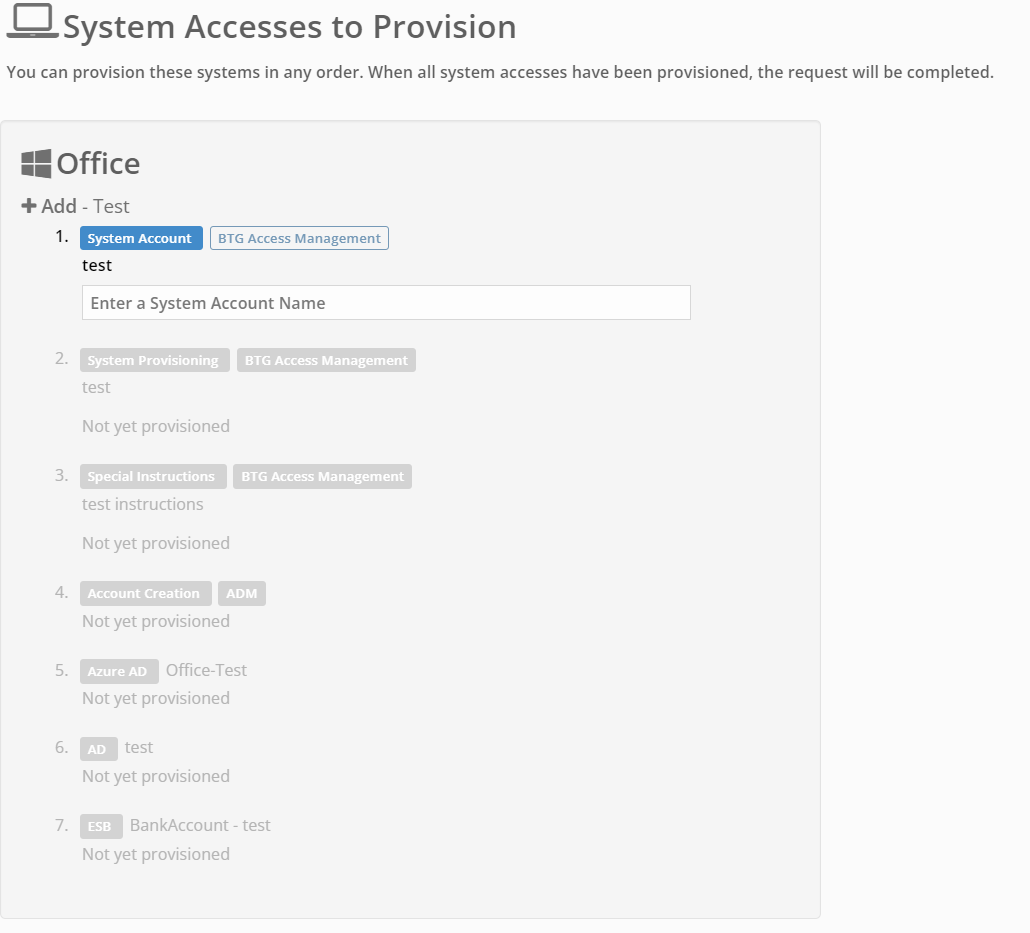
A list of all provisioning step types is detailed in the Resources and Accesses management article.
Once the step is provided, a completion date should be displayed. The access will be given once all the steps have been provided.
Cancel a request
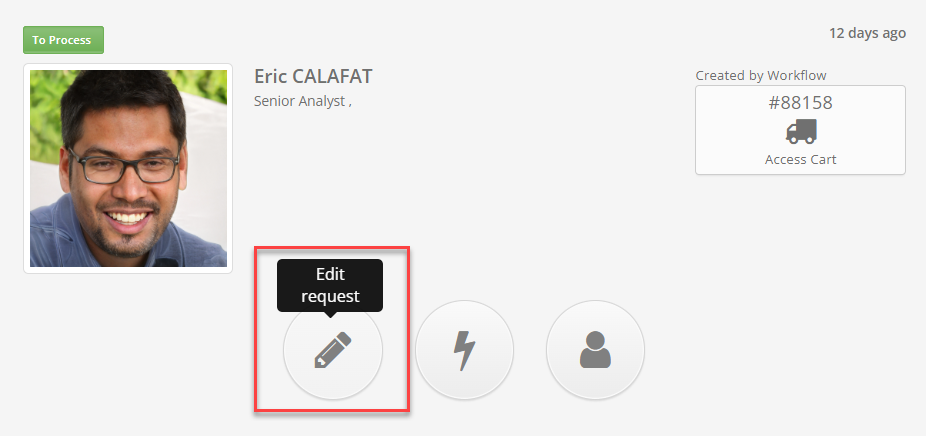
In the Manage Request page you can click on the request you want to cancel or edit and click on the pencil icon.
Edit request option
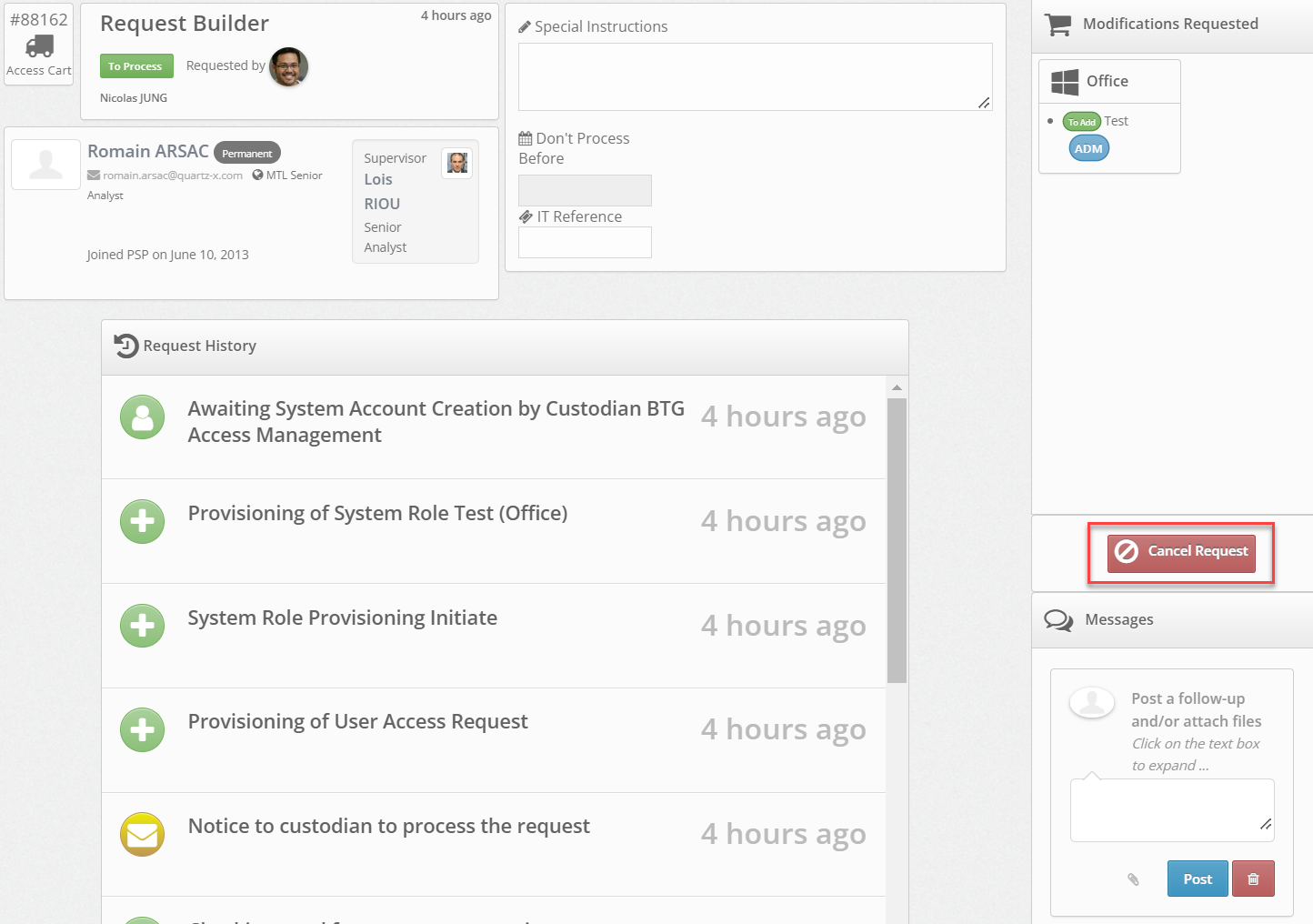
Once you clicked on the edit button, you should be sent to a page where a "Cancel Request" button will be accessible. You can click this button to cancel the request.
Cancel request button
Assign a request
In the Manage Request page, you can also choose to assign a request to another member of your custodian team. In order to do this, you must click on the request you want to edit and click on the ''Assign Request'' button.
Assign Request button
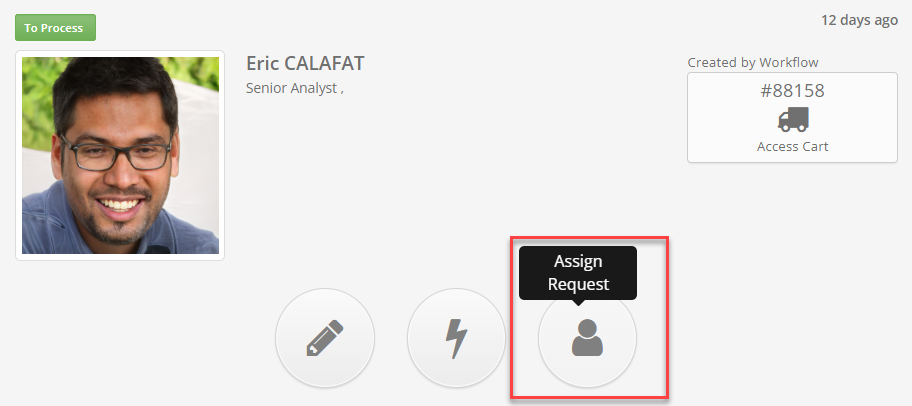
After clicking the ''Assign Request'' you should see a popup that allows you to assign the request to yourself or to another member of your custodian team.