Employee Page
The employee page allows you to view employee information. You can view other employee pages or your own profile. Depending on your role within the organization, you might be able to see additional information or take specific actions.
For details on how to see your own page, please go to the View your profile and your accesses page.
Viewing other employee pages New request Access cards Self service User sync Password reset Contact information
Viewing other employee pages
There are many ways in which you can see other employees' pages in the tool. You can search an employee's name in the main search bar and click their profile. You can also click any employee's photo or name anywhere in the tool.
The page of other employees is like your personal page. In addition to viewing their information, you can perform a series of actions, some of which are restricted to specific profiles.
Example of an employee page
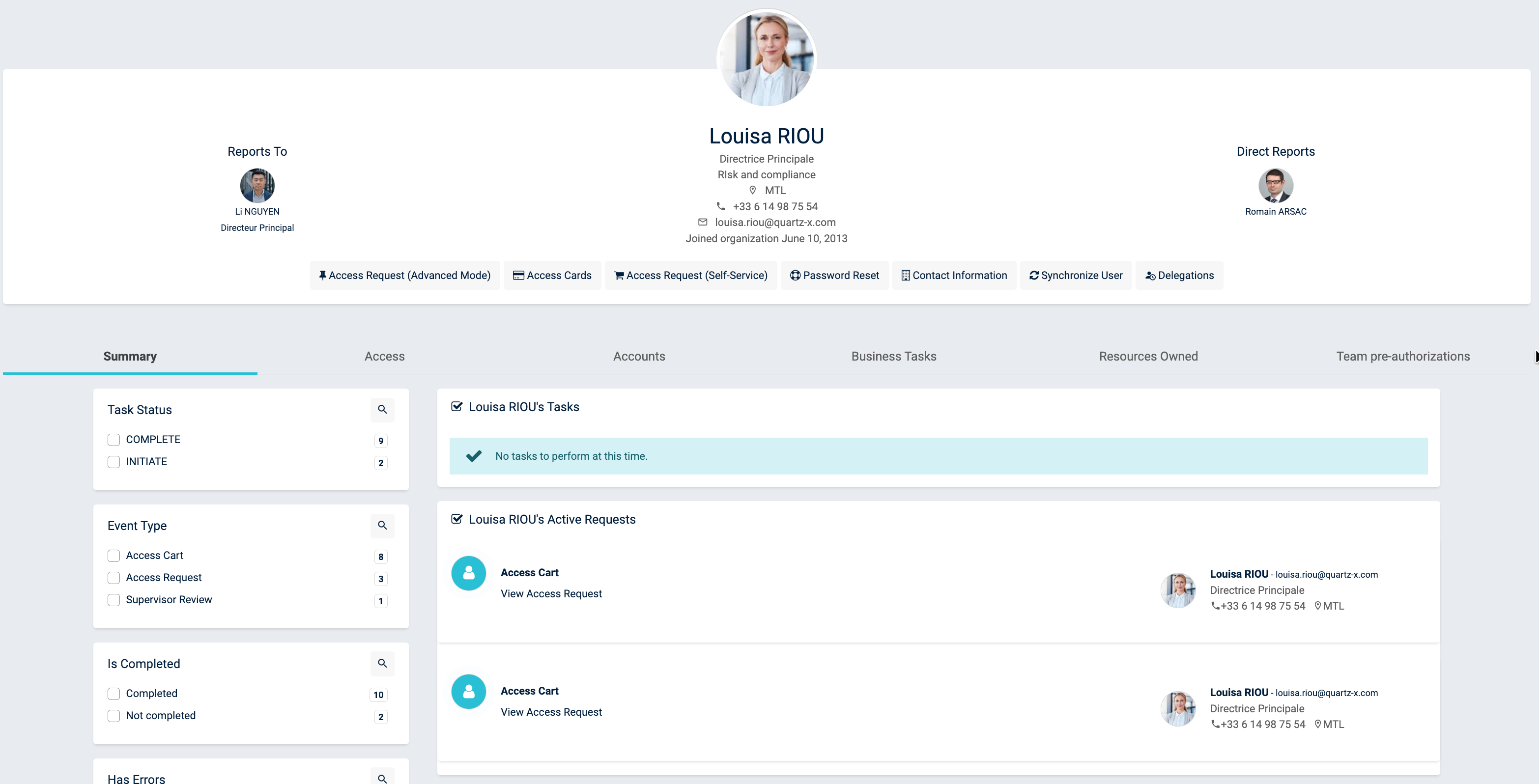
Based on your user role, you should be able to:
| User Role | Access Description |
|---|---|
| User | Create a new access request, view access cards, open a self-service request, and sync profiles |
| Admin | Has the same access as a Users, but can also submit a new request, view access cards, reset passwords, and view contact information |
| Admin Services | Has the same accesses as an admin, but can also define primary office and change access location of employees |
| IT Operations/IT Service Desk | These roles can view all permissions, systems, employee profiles, event history, they can create password reset events, they can view, manage and process user requests with the exception of back-dated requests and special submits, they can also view and authorize permissions within UserRequests that are associated with systems market with the licensing concern, they can view/post messages and download attachments on user requests, and they can view full system catalogy and permissions |
| HR Employee Life Cycle Management | Confirm employee events captured from the source HR systems in order to trigger QuartzID employee workflows and view all permissions, systems, employee profiles, events history and control center |
The details on how to use these features are listed bellow:
New request
Please review the Create a new access request page to get more information on this process.
Access cards
You can use this feature to see access cards that are registered with the user or to add additional access cards.
Self service
Please review the Create a new access request page to get more information on this process.
User sync
You can use this feature both on your profile and on other employee pages. When you do this you will update the user's Active Directory account attributes and update the ESB employee information.
Password reset
You can use this section to reset someone's password. In order to do so, you need to enter your access card number and to pick a system for which you would like to reset the password. After you have done this, the user will be required to change their password.
Contact information
You can use this section to modify an employee's phone numbers or to tag them as a first aider or as having a government ID. This section is available both on other employee pages and on your profile.