Rules Management
The Rules Management module allows users with an Admin role to manage:
Segregation of Duties (SoD) conflicts: QuartzID allows you to create Business Tasks and link system accesses to each Business Task. This will allows you to create Business Task conflicts (system accesses conflicts) that will be checked when an employee submits an access request.
If an access request contains a toxic pair of system accesses, or if it conflicts with an access that the employee already has, the request will first need to be processed by an Admin before being processed by the supervisor and the custodian.
SoD is configured in QuartzID by creating Business Tasks and then creating Business Task Conflicts.
Pre-Authorizations: QuartzID also allows you to create permission scopes for different teams managed by supervisors. In order to achieve this, Admin users must specify all accesses Pre-Authorized for a supervisor and can specify if the Pre-Authorization applies only to the supervisors or to all of their subordinates.
If an access request contains a system accesse that is not Pre-Authorized for the user, the request will also need to be processed by an Admin before being processed by the supervisor and the custodian.
If you want more information on the different workflows of access requests and ... you can view this page.
Session Repository and Summary Page Business Tasks and Task Conflicts Permission scopes
Session Repository and Summary Page
When modifying SoD conflicts and Pre-Authorizations, users must first create a new editing session. All modifications done during the editing session must be approved by another Admin user before being applied by also accessing the Rules Management module. When accessing the Rules Management module, if a user has already started an editing session, you will first be presented a summary tab containing all modifications of the user that created the editing session. In the summary page, you can then see all modifications done to business tasks, task conflicts and permission scopes.
Summary page
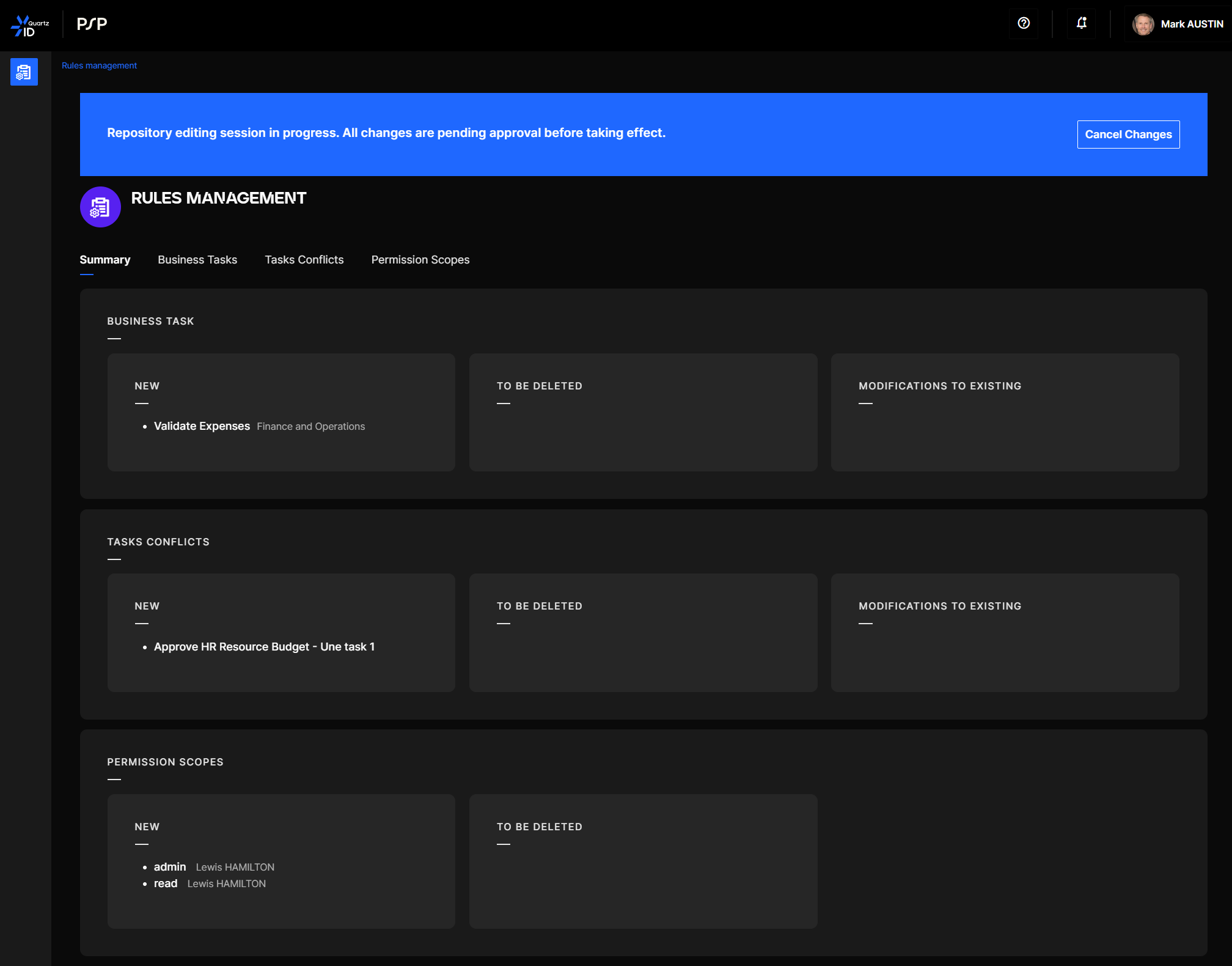
You can also see a section containing the different impacts of the modifications on employees.
Impacts on employees
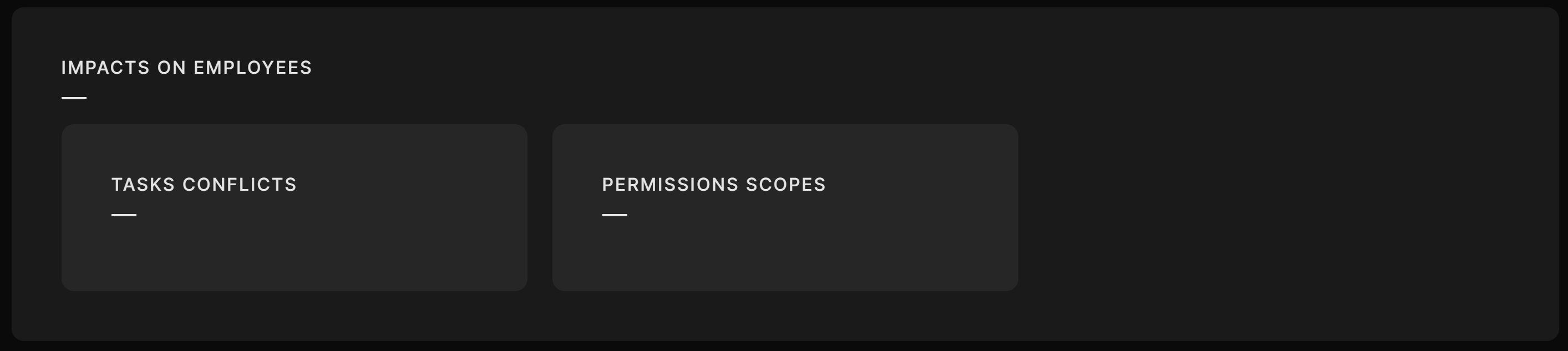
Depending on the modifications, you can approve the changes, cancel all changes, or take control of the editing session. If you are the user that created the editing session, you will only be able to cancel all changes in the editing session.
Business Tasks and Task Conflicts
QuartzID allows you to create conflicts between Business Tasks. These Business Tasks represent tasks that employees can do in the organization and are linked to accesses in the different systems. If an access request contains a toxic pair of system accesses, or a requests access conflicts with an access that the employee already has, the request will first need to be processed by an admin before being processed by the supervisor and the custodian.
The first thing to do in order to configure task conflicts is to first create the different Business Tasks of the organization.
Creating and updating Business Tasks
In order to view all Business Tasks, click on the Business Task tab. You should see a list of all Business Tasks that you can filter using the filters on the left.
Business Tasks list
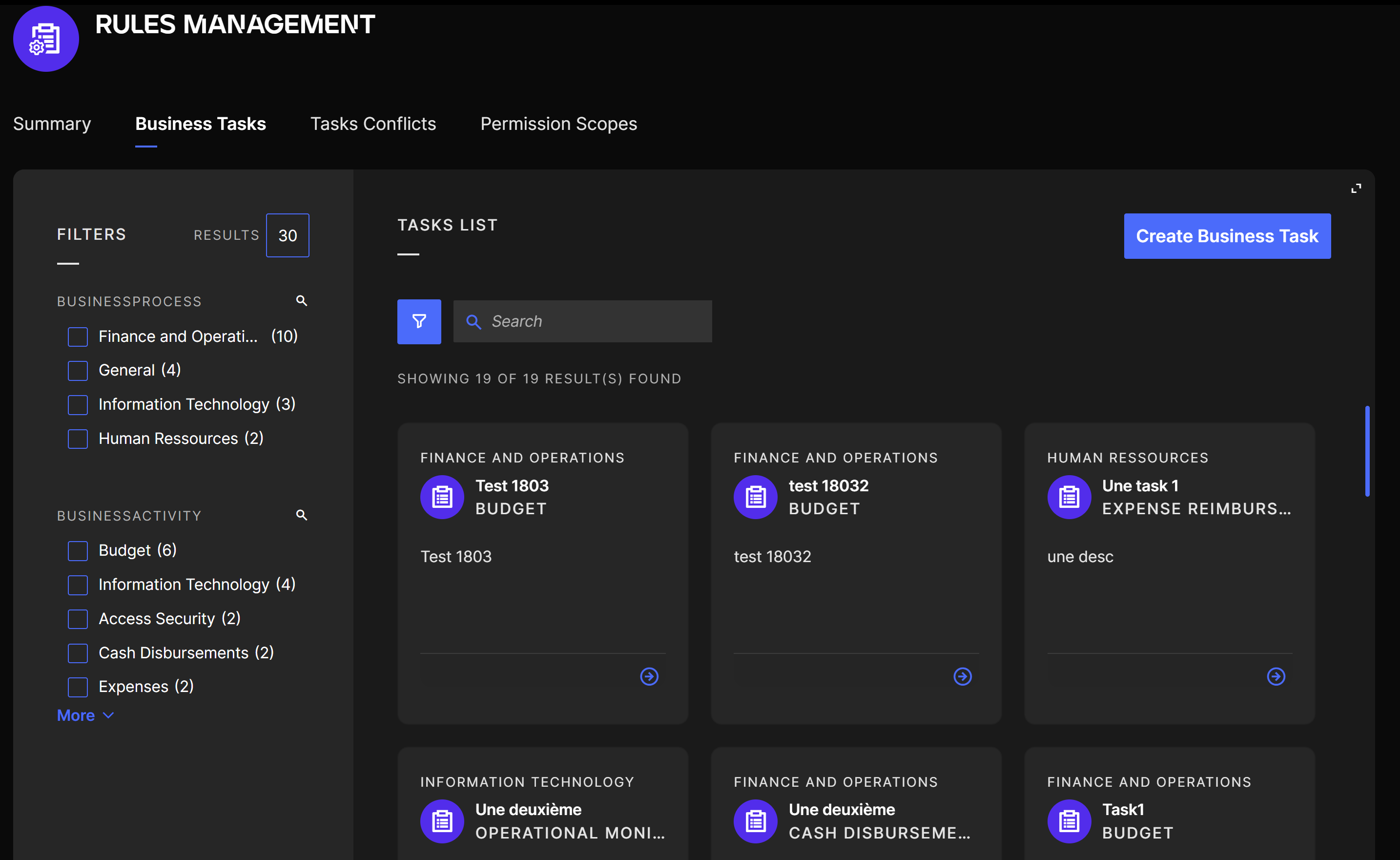
You can click on an existing Business Task to see its details or to update it. Alternatively, you can also create a new Business Task using the Create Business Task button. You will then be redirected to a form allowing you to input the general information and the process.
Business Task details view
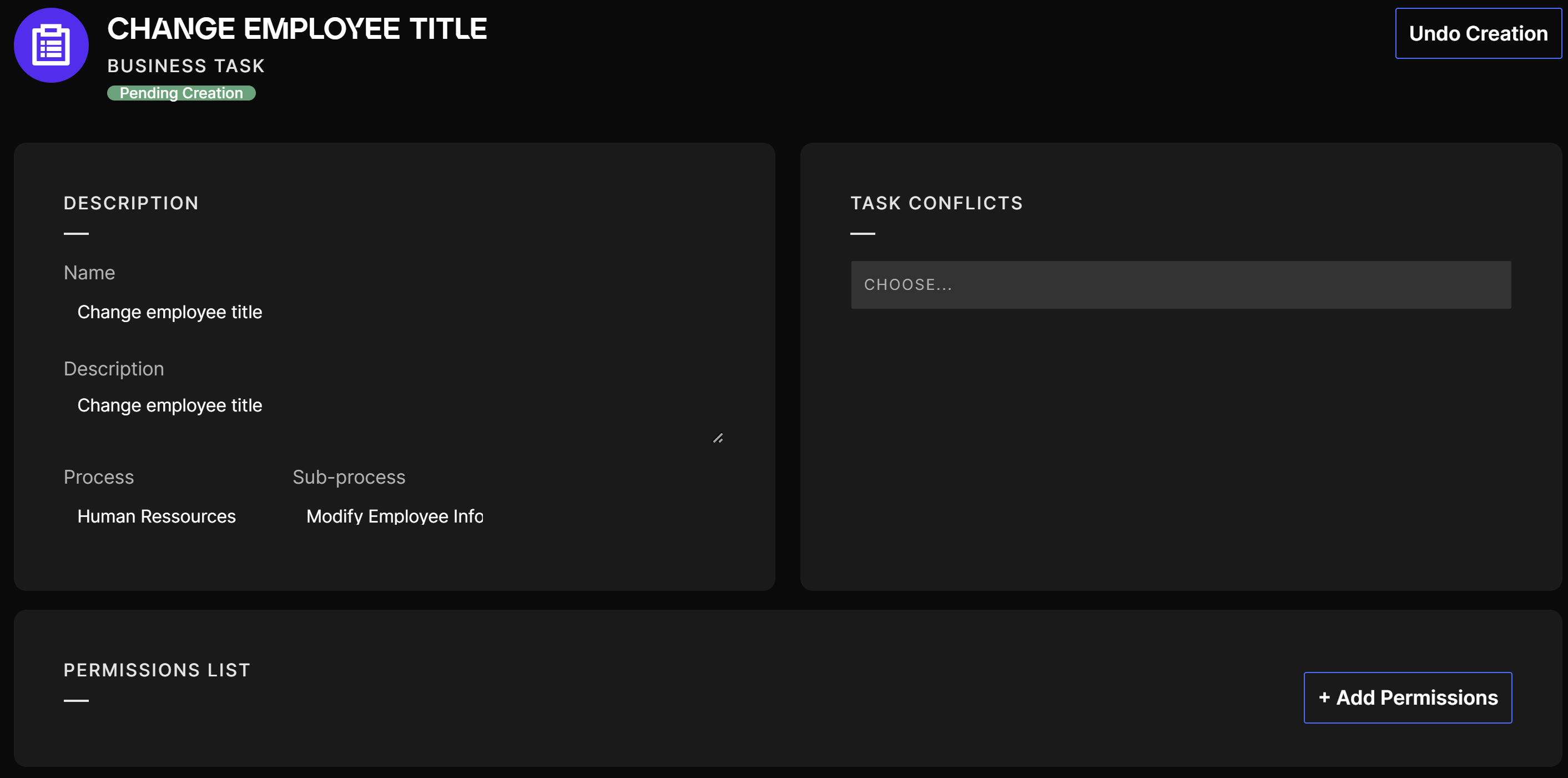
From this page, you can update the general information and the process. You can also link one or multiple system accesses by using the Add Permissions button and also directly create conflicts with other Business Tasks from this view.
Creating Business Task Conflicts
In order to create Business Task Conflicts, click on the Task Conflicts tab. From this tab, you should see all task conflicts displayed in a matrix for the selected process.
Task Conflicts view
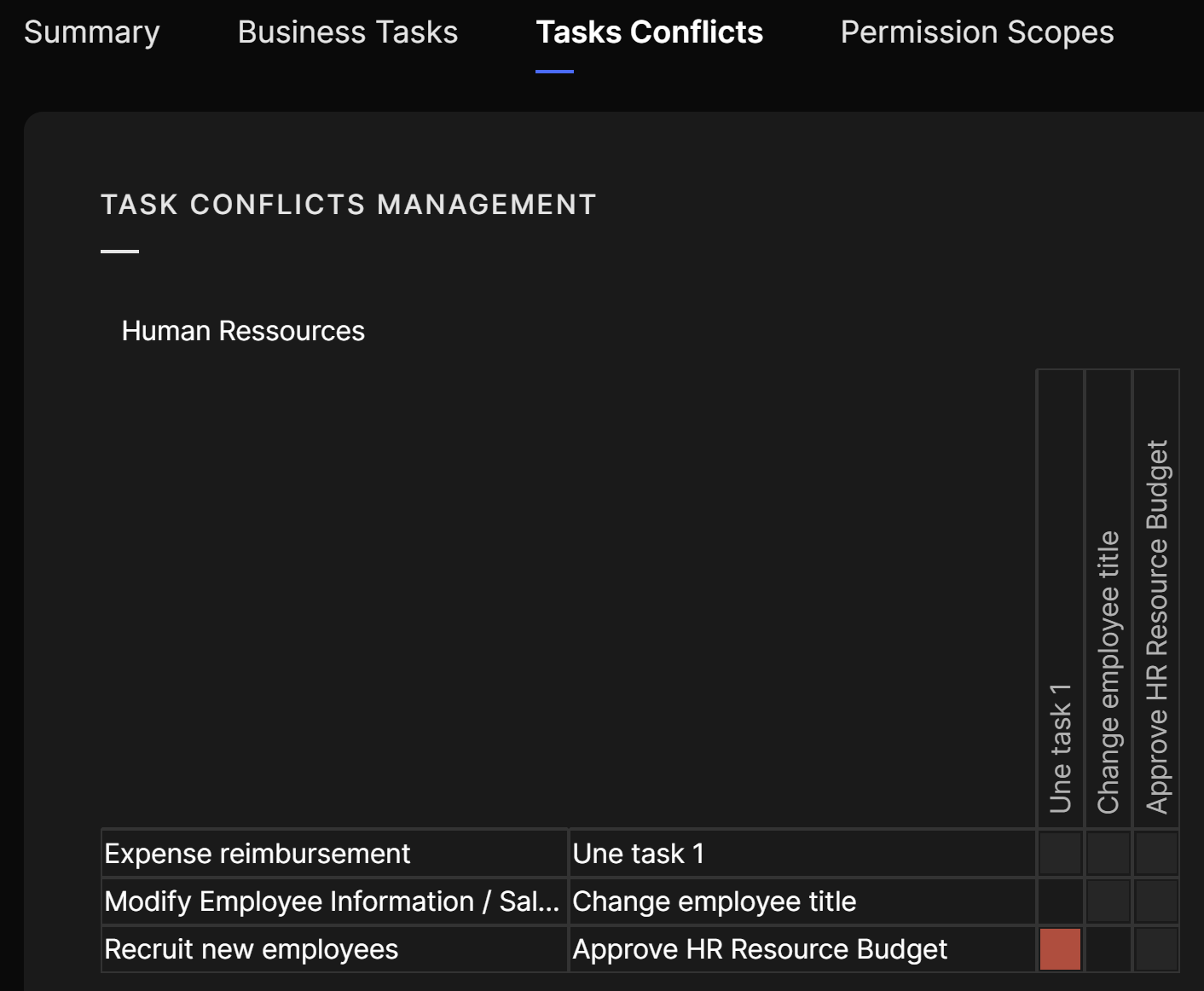
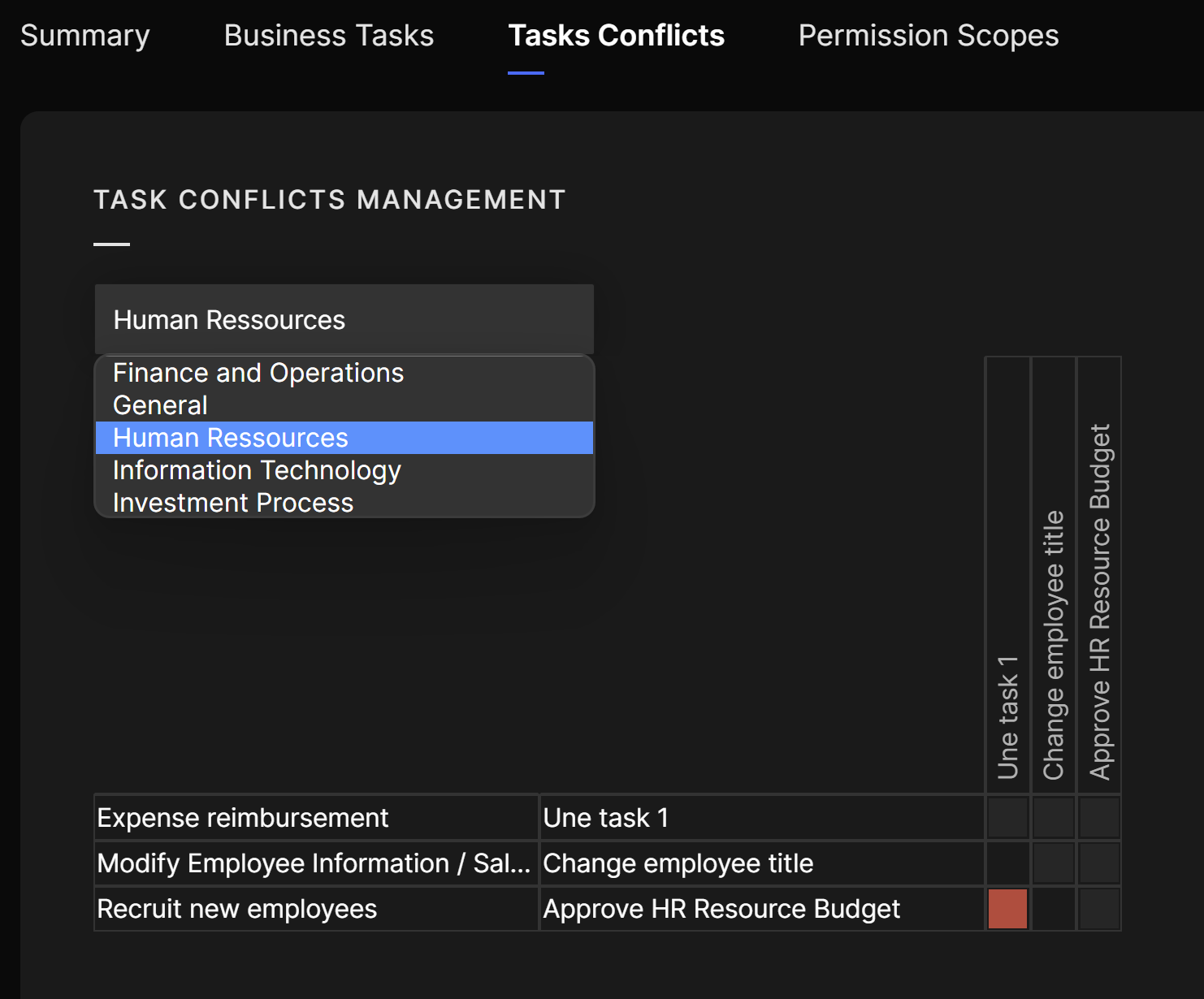
All conflicts are displayed using a red square. You can add a new conflict by clicking on a black square or remove a conflict by clicking on a red square. You can also change the processes shown by using the dropdown list.
Task Conflicts process selection
Permission scopes
QuartzID allows you to configure Pre-Authorizations for supervisors and their teams. Pre-Authorizations allow supervisors and their teams to create access requests without requiring a derogation step from an Admin user. This allows teams to be more autonomous when managing accesses to their systems.
In order to view and create Pre-Authorizations, click on the Permission Scopes tab. From this tab you should see a list of all supervisors in the organization.
Supervisors list
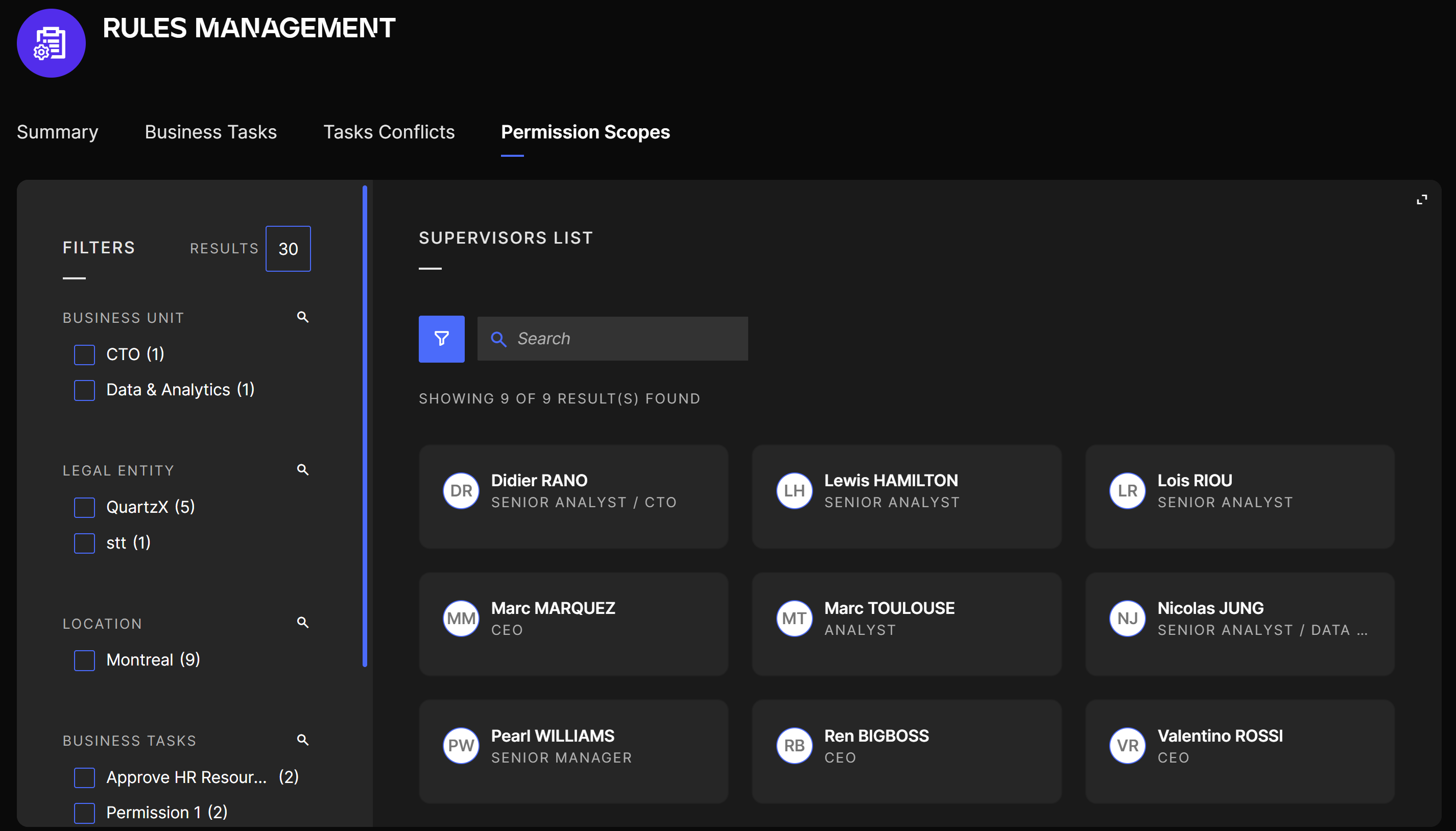
You can now select the supervisor for which you want to view the Pre-Authorizations, Pre-Authorize an access, or modify an existing one.
Supervisor details page
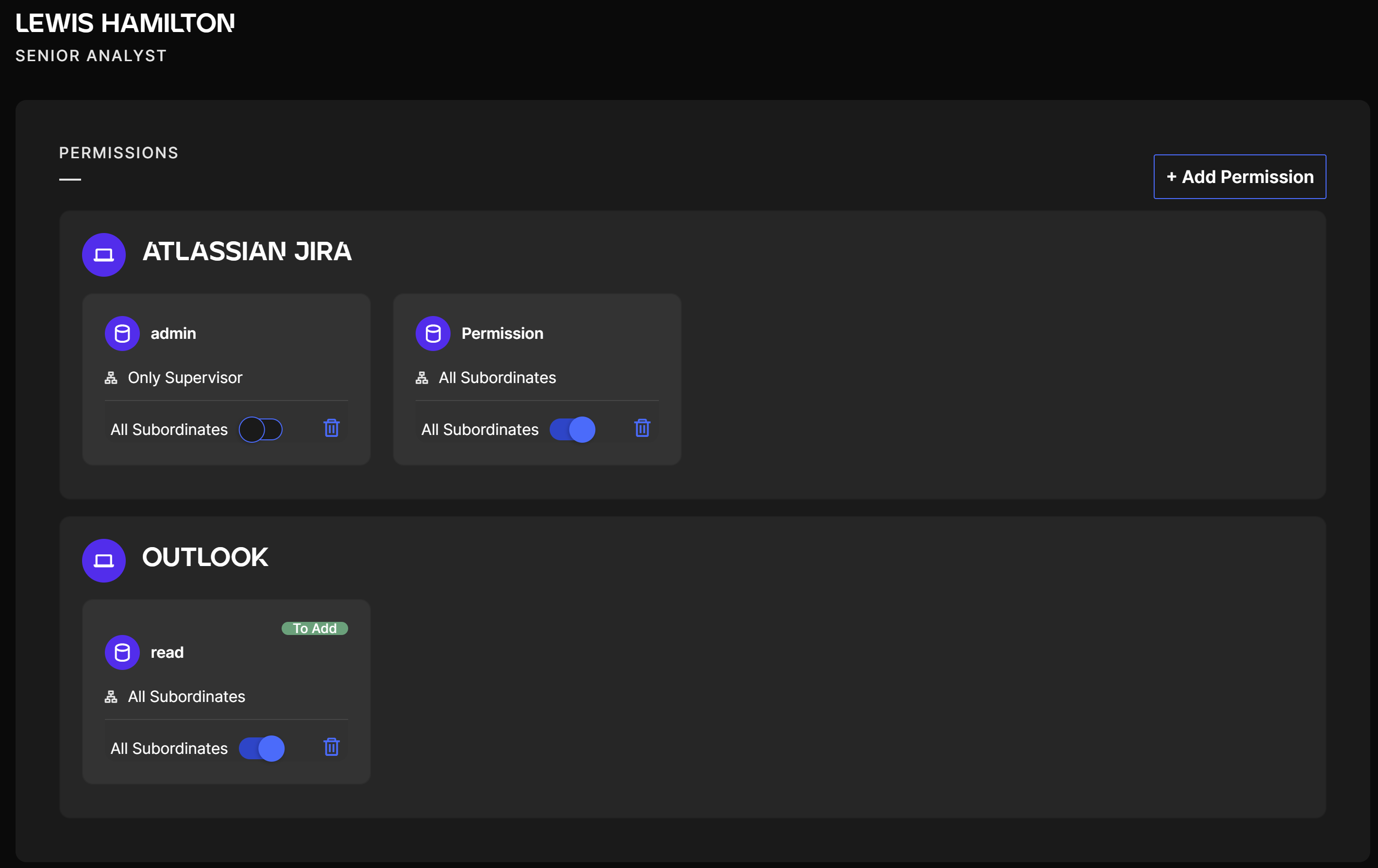
It is possible to view all the Pre-Authorizations of the supervisor, grouped by system.
For each Pre-Authorization, you can modify the scope of the Pre-Authorization using the slider:
- If All subordinates slider is disabled, the Pre-Authorization is only valid for the supervisor.
- If All subordinates slider is enabled, all employees below the supervisor will be Pre-Authorized for the access.
You can also delete the Pre-Authorization using the garbage icon.
You can add a new Pre-Authorization by using the Add Permission button.