View your profile and your accesses
Accessing your profile page Summary Accesses Accounts Business tasks Systems owned Team pre-authorizations
Accessing your profile page
There are two different ways you can access your profile on the QuartzID application.
- You can click the IAM logo which is also located in the header, on the top left hand side.
- You can also click on the person logo that is located in the header, on the top right hand side of the screen.
QuartzID header

You should also land on this page automatically when you open the tool.
From your profile page, you can submit a request and you can synchronize your profile by clicking on the two buttons below your personal information.
New Request and User Sync buttons

From this page, you can also access the following features:
Summary
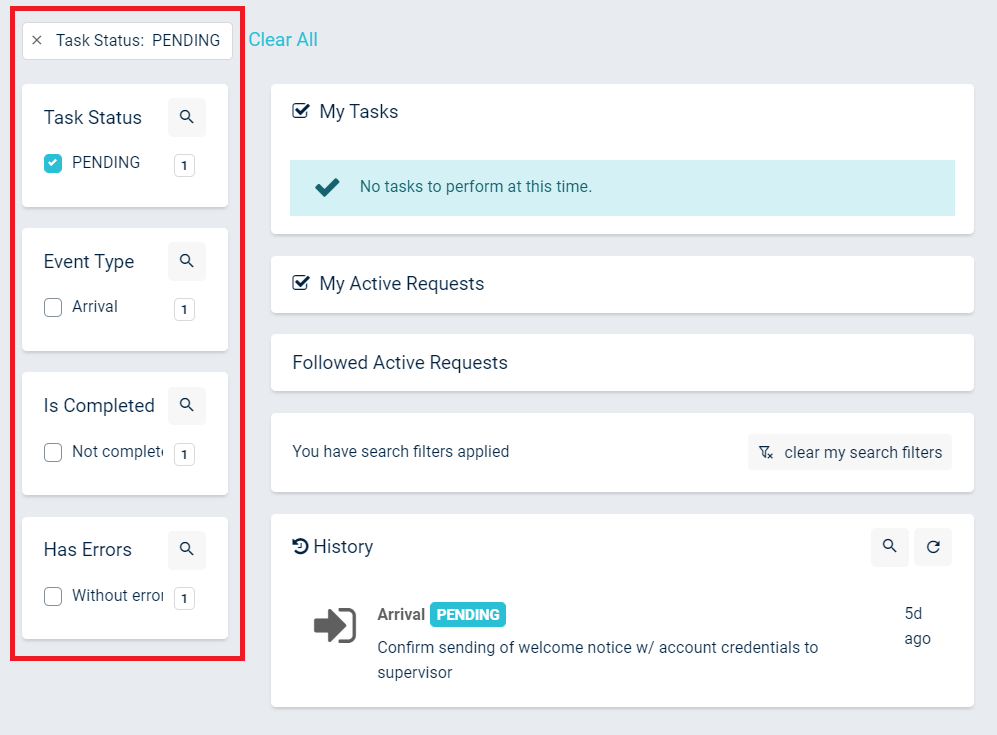
On the summary page, you will be able to view My Tasks, My Active Requests, Follow Active Requests, and History. My Tasks are tasks and My Active Requests are tasks and request for which you are responsible. Followed Active Requests are requests for which you have subscribed that are therefore shown on your profile. History shows you previous tasks and requests that are completed or pending.
You can use the filters on the left menu to filter out certain items e.g. by clicking the pending task status on the left, you can remove any completed tasks from the suggested results.
Filtering the summary page
You can access the following pages by clicking on their names on the menu below your profile information : Accesses, Accounts, Business Tasks, Systems Owned, and Team pre-authorizations.
Other tabs accessible from the profile page

Accesses
The Accesses section shows all of the systems that you can access. You can click on each system to see specifically what rights you have within them e.g. write, read, etc.
Accounts
The Accounts section shows all of the managed accounts that you have access to e.g. adm accounts, Azure, AD, other applications etc.
Business Tasks
The Business Tasks section shows all of the business tasks assigned to you that are linked to the accesses that you have been granted e.g. create an expense report, validate expenses, etc.
Systems Owned
The Systems Owned section shows all of the Systems where you have been defined as a system owner. From this section you can also change the system owner for the systems you own.
Team pre-authorizations
The Team pre-authorization section shows all accesses for which your team has been pre-authorized. The pre-authorization allows you to give your teammates access without having to ask for a new authorization each time.
If you need more information on how to configure Business Tasks and Team pre-authorization, you can go to this page. If you also want more information on all of the different access request workflows, you can navigate to this section.