Delegation
The Delegations module allows the supervisor to choose an employee to become his delegate. Once a delegation is created, the delegate will be able to approve all the access requests that would have been associated with the supervisor. It is applicable to any type of access request : new request, access cart, self service, arrival and transfer.
Create a delegation Update a delegation Delete a delegation Approving with a delegation Delegations explorer Rules and exceptions Permissions explorer
Create a delegation
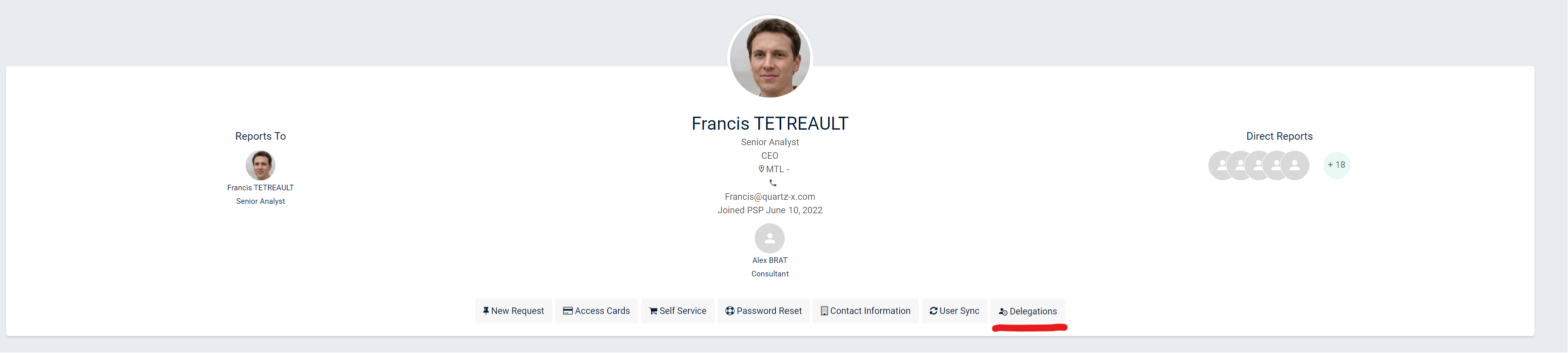
As a your organization employee :
You can designate a delegate who can approve your tasks. For that :
1 - Go to your homepage, click on the button 'Delegations' Employee page
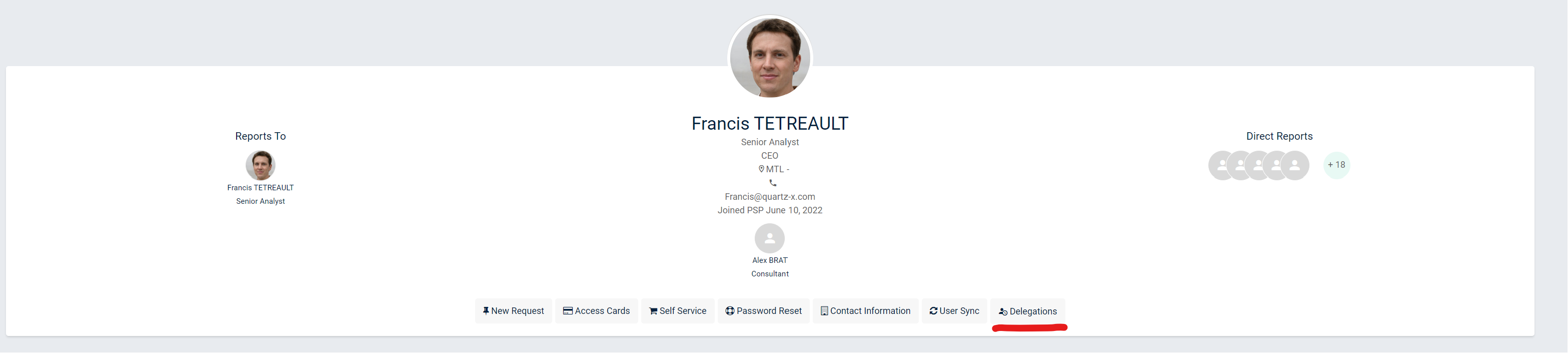
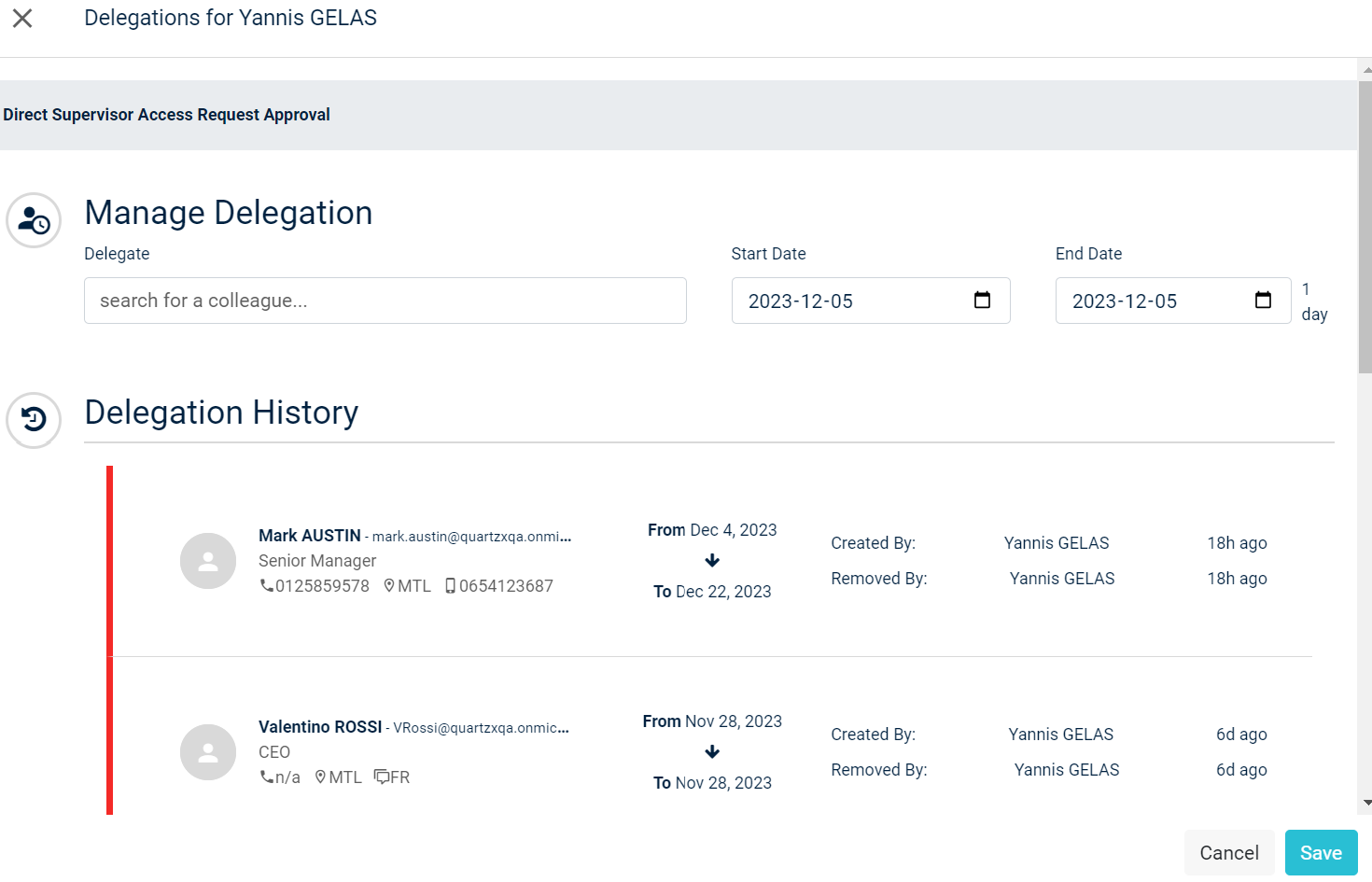
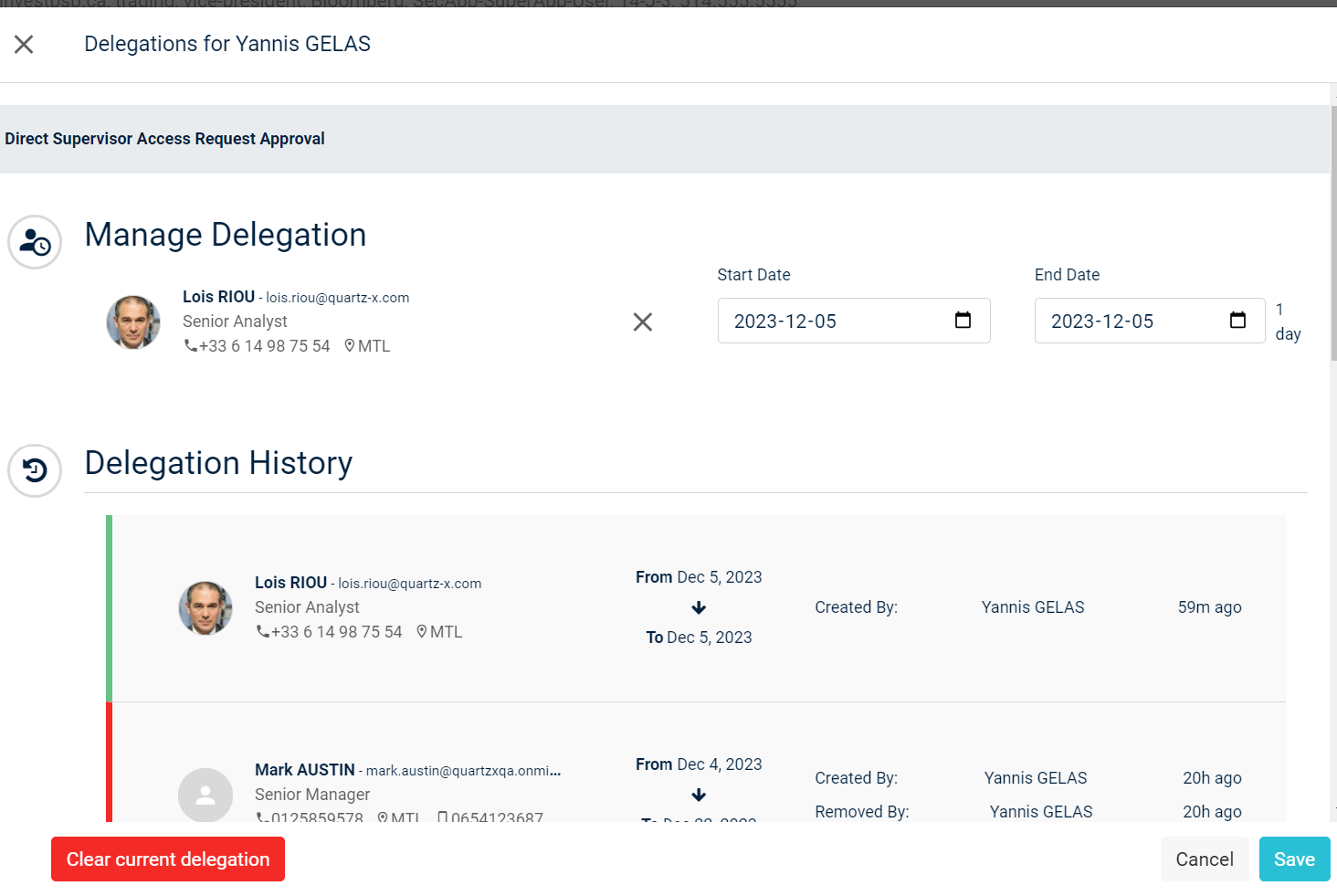
2 - You will then be able to create a new delegation. Choose an employee and set the period of delegation
Creation of a delegation
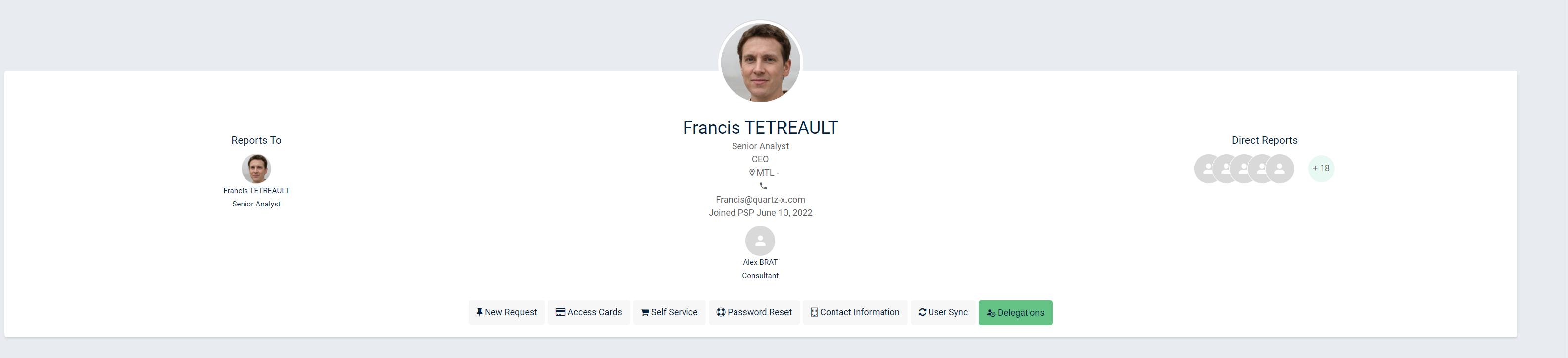
3 - Click on the button 'Save'. If the delegation is currently active, the button Delegation will appear green.
As a BTG employee :
1 - As an admin, you can follow same instructions as a your organization employee, but you must complete the field "Reason" to proceed with the delegation :
Delegation page
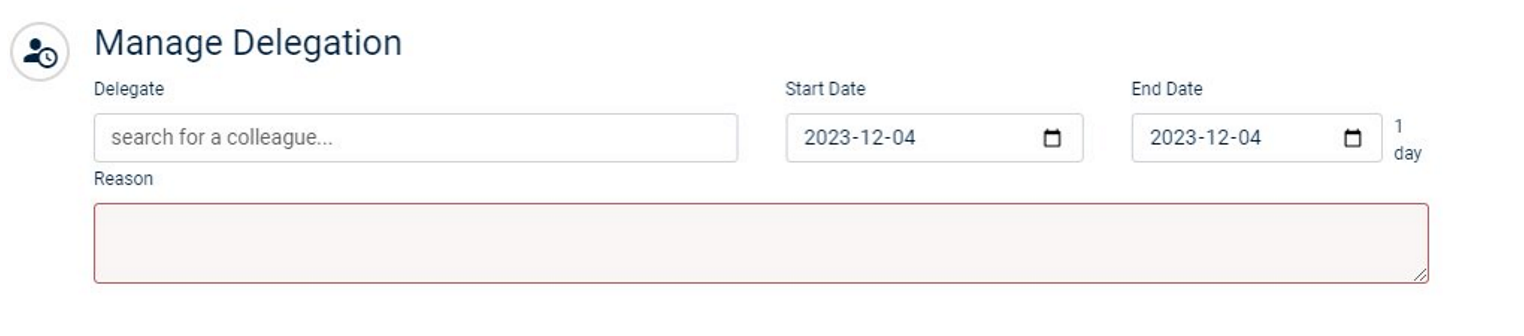
- You can not set a start date previous than the current one
- As a your organization employee, you can not set a period greater than 42 days.
- As a BTG employee, you have the possibility to set a period greater than 42 days for a delegation.
- You can not set more than one delegation. You can only set one delegate for a period. If you would like to set a delegation for another period, you will need to wait until the end of the first delegation.
Update a delegation
1 - Go to the employee page where the delegation needs to be updated. Employee page
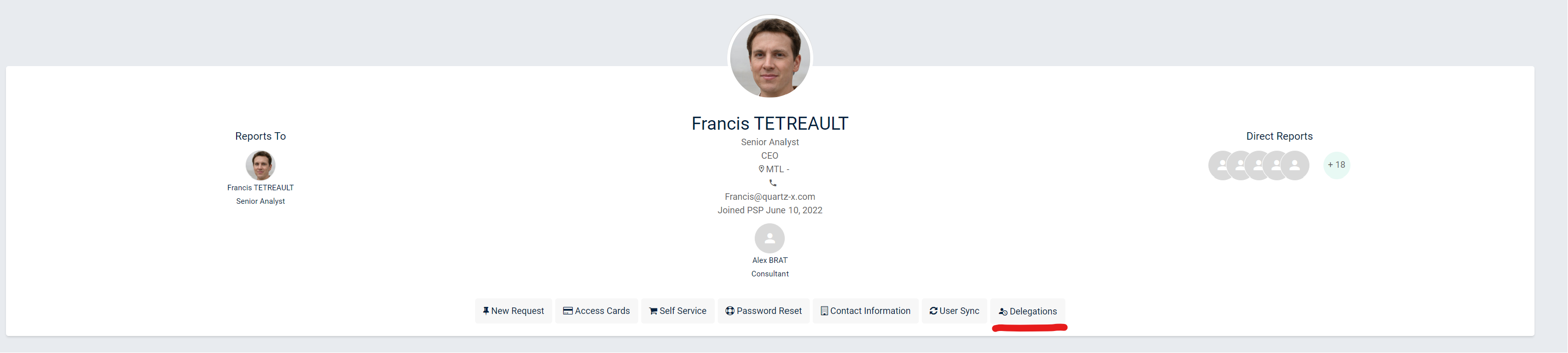
2 - Click on the button 'Delegations', the fields will be precomputed with the current or future delegation.
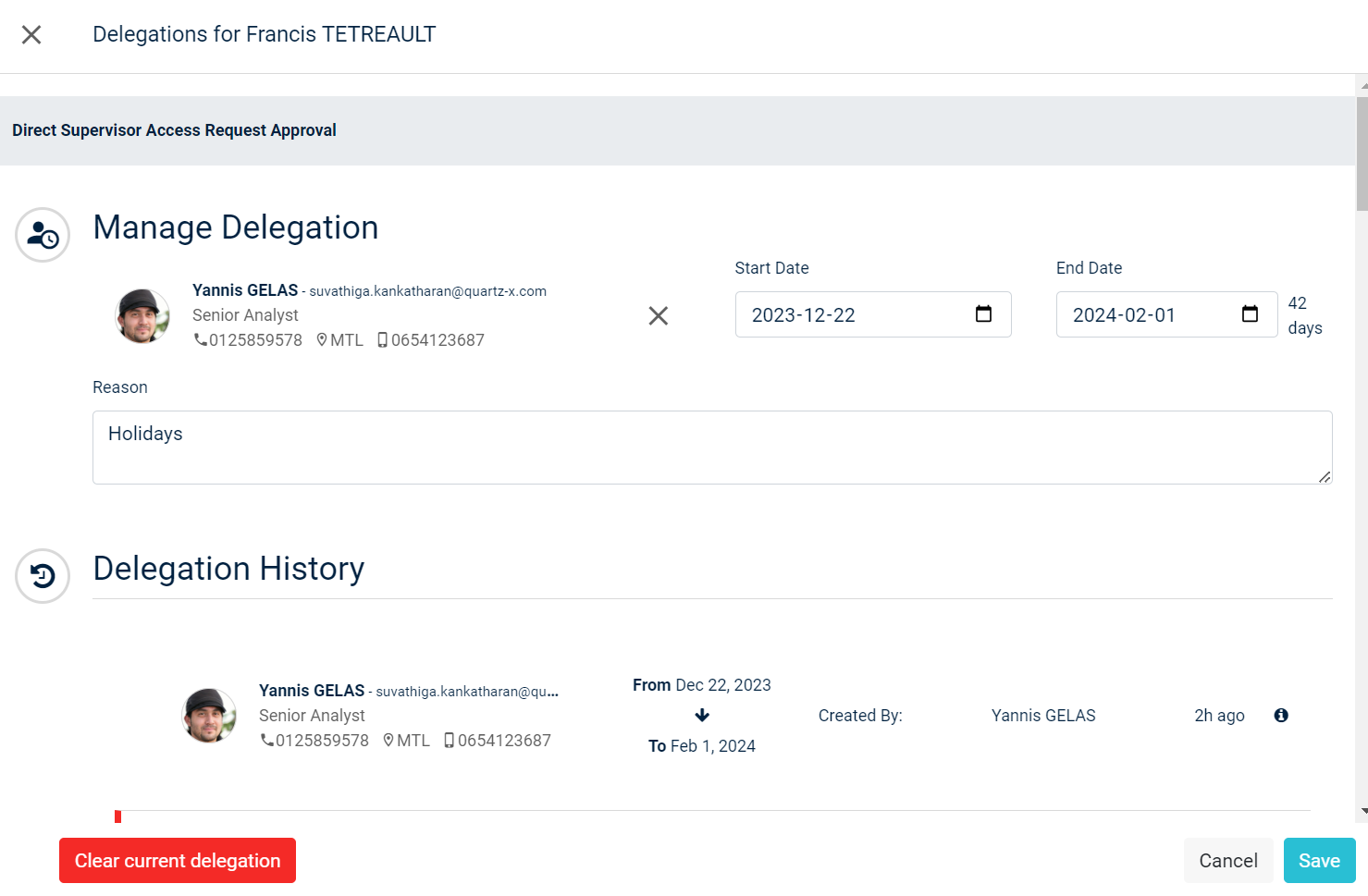
3 - Modify the information in the fields to update the delegation, and click on 'Save'.
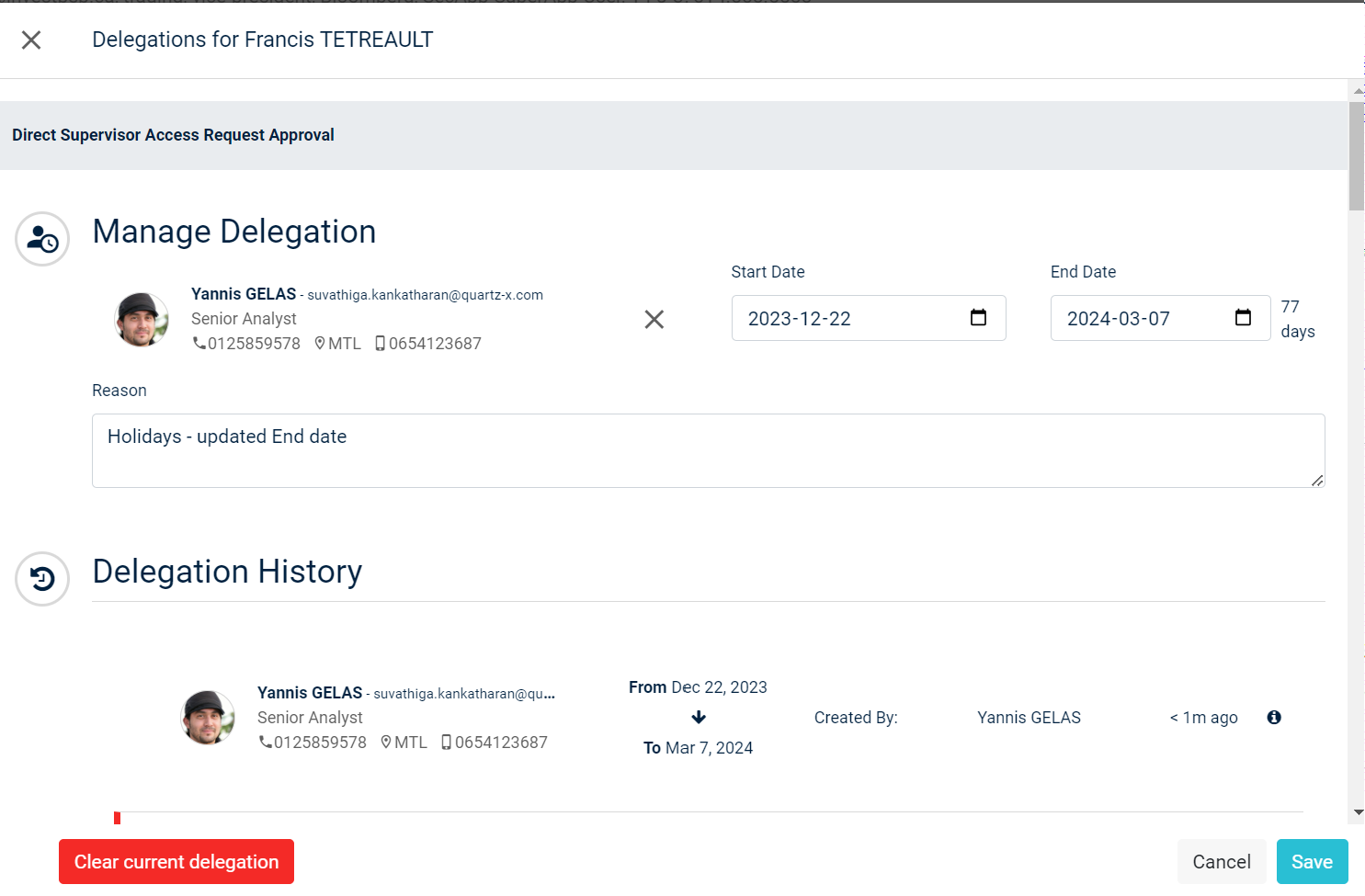
4 - When looking at the delegations history, you will be able to see the previous one that has been modified.
Delete a delegation
1 - Go to your employee page, click on the button Delegations. Employee page
2 - If there is an active or a future delegation, you will be able to see the button 'Clear current delegation', click on it. The delegation will be deleted. Delegation page
Approving with delegation
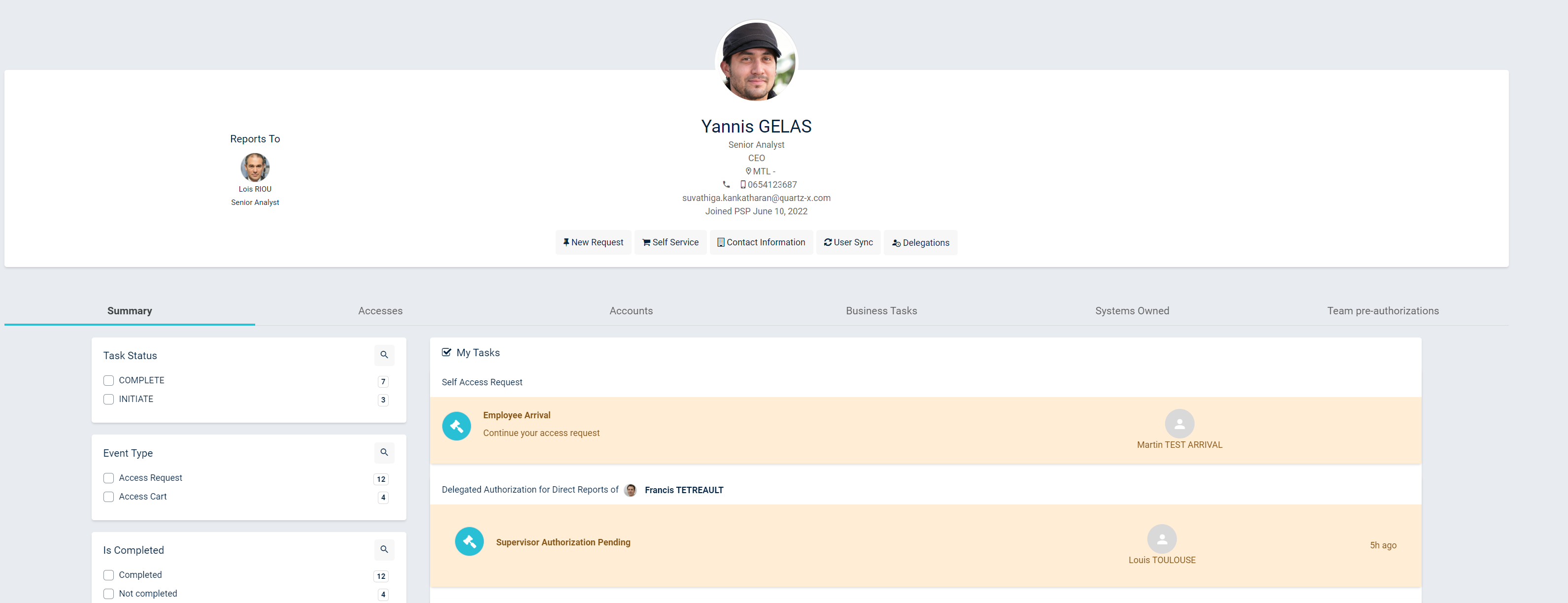
After being designated as a delegate, you will receive all approval tasks of the supervisor.
1 - Go to your employee page, you will see approval tasks displayed in your dashboard under the section "Delegated Authorization for Direct report of" : Employee page
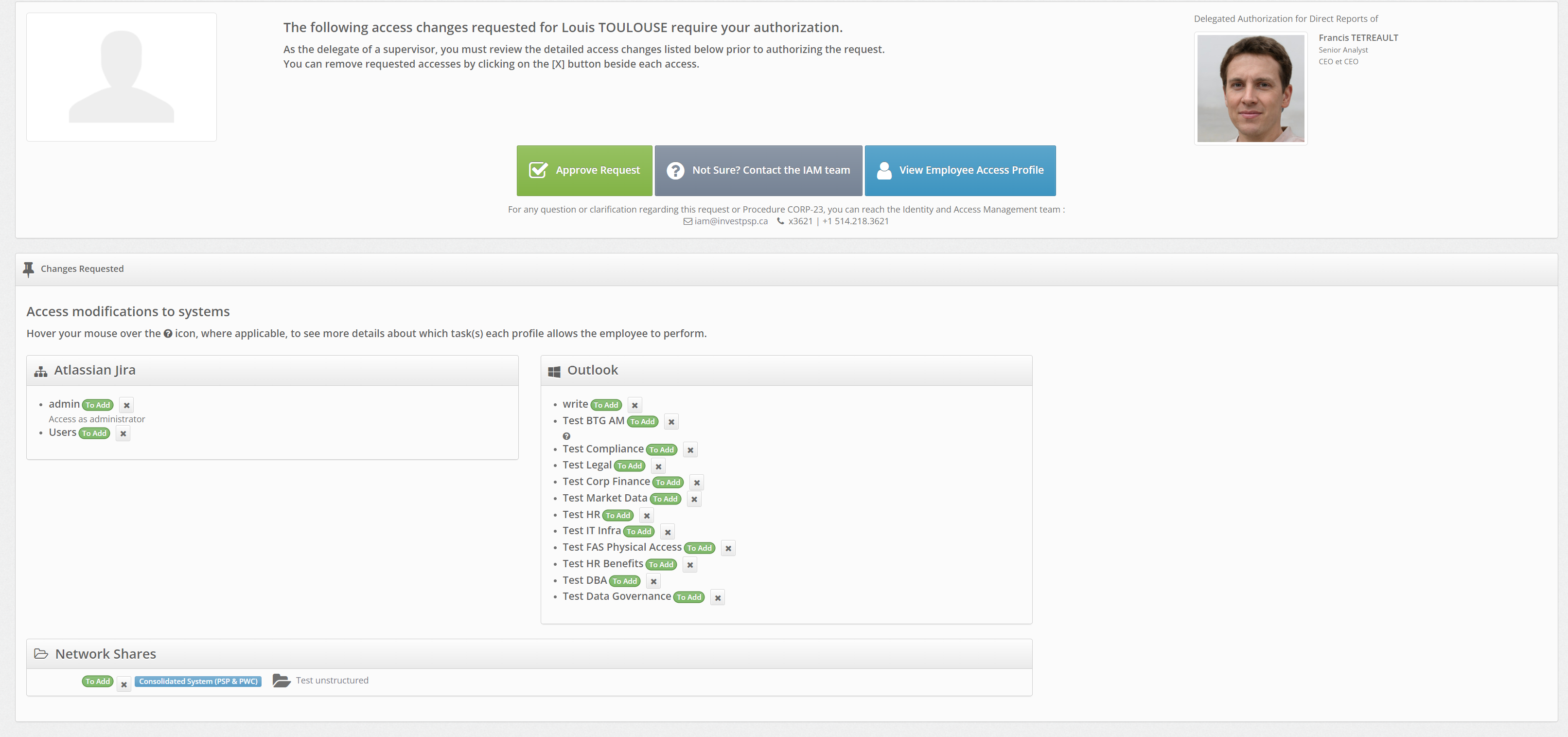
2 - When you click on the task, a message will inform you the role of a delegate before approving the access request : Access request to approve as a delegate
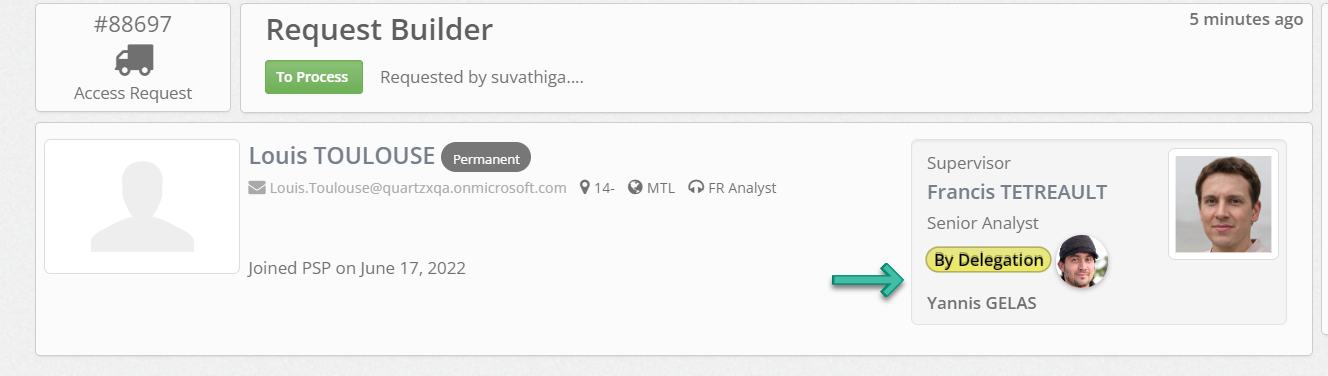
3 - When going back to the request that has been approved by the delegate, users will be able to see the tag "By delegation" with the name of the delegate who approved the request. Access request
Delegation explorer
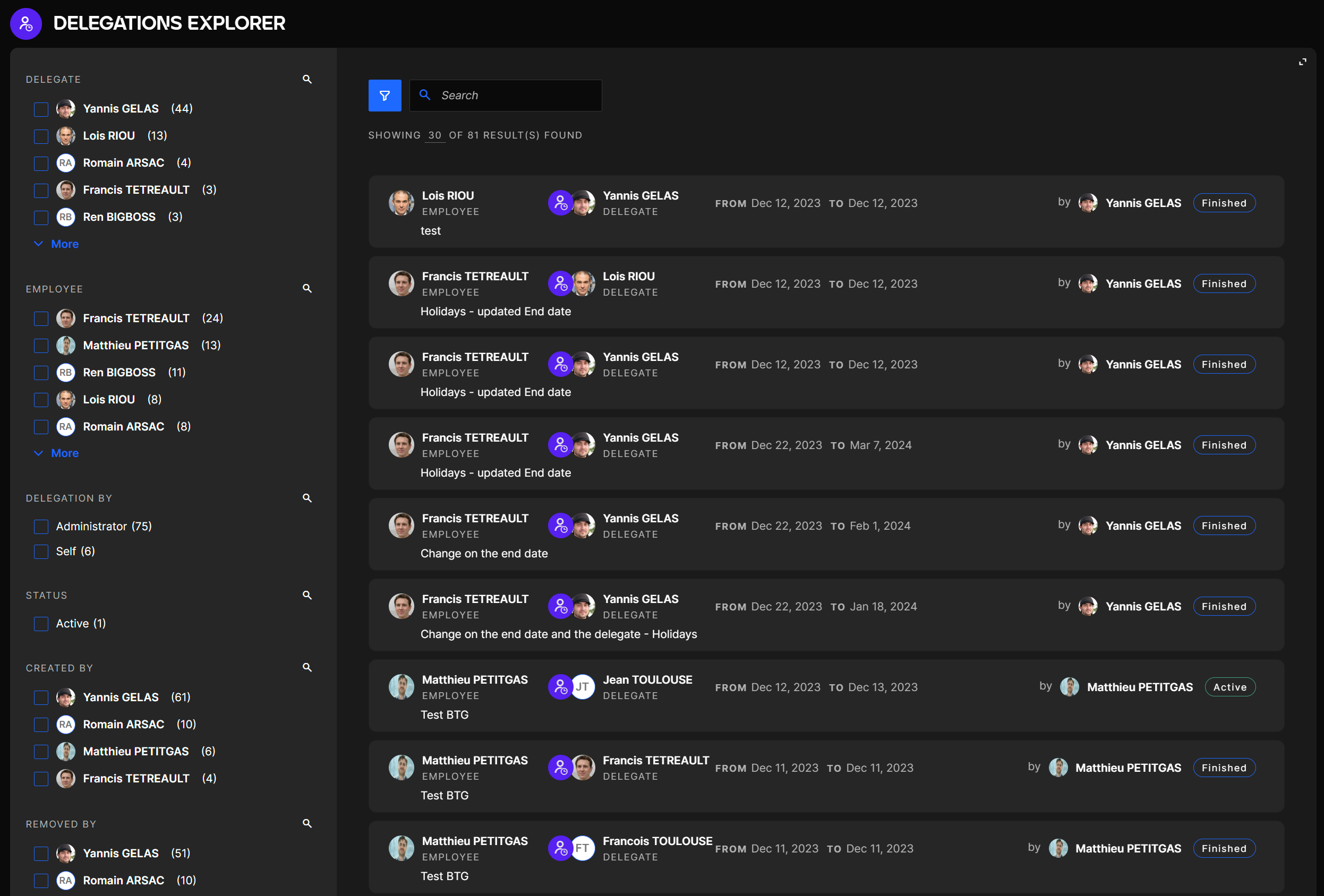
In this new page, users will be able to search all the delegations given by supervisors
Delegation explorer
Rules and exceptions
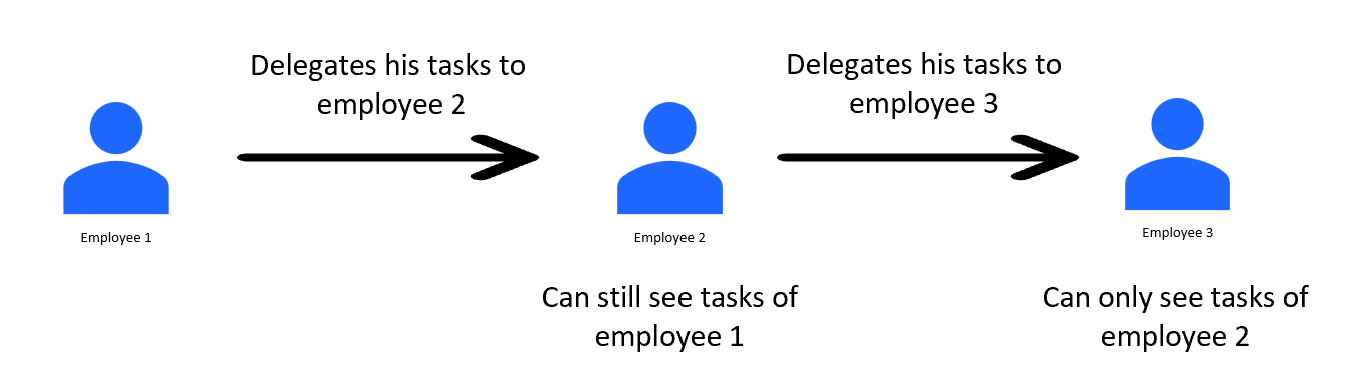
- Delegation of delegation is not supported by the application. If a designated delegate has also a delegation in progress, tasks from his supervisor/delegator will remain under his responsibility. They will not be transferred to his own delegate. Only the approval that were originally associated with him (and not delegated) will be transfered to the delegate he defined.
- Delegation can be done to anyone even with employees who does not have any subordinate, this type of delegation will not have an impact on them as they do not have approvals to do.
- The delegation will not oversight the following approval processes :
- System owner approval
- Supervisor review process/approval
- System owner review process/approval
- All current rules still apply:
- When the request has been done by the supervisor or delegate, there is no approval. The approval is done automatically.
- When the request has been done by someone who can not approve, the approval will be sent to the supervisor or delegate.
- Even if an employee is a delegate, he can not approve a request for himself. He will have to contact BTG team which can approve the request using the "Manual supervisor approval" option in the manage request section.
It is not necessary to delegate someone who is your subordinate, it could be another supervisor.
Permissions explorer
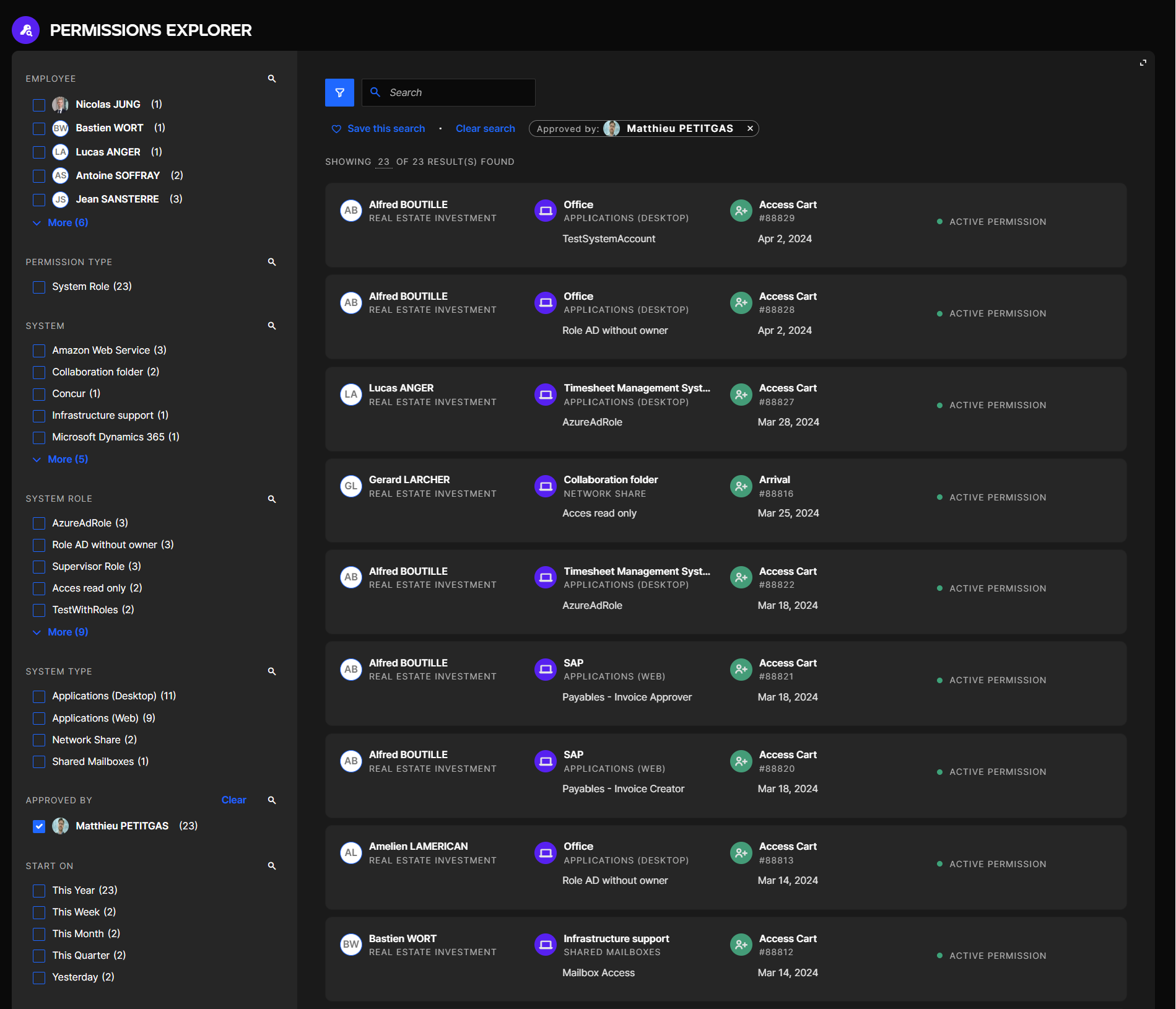
In this new page, users will be able to search among all the access right given to all your organization employees since the beginning of IAM.
Permissions explorer