Create a new access request
Access requests can be created in QuartzID via the QuartzID shopping cart, the New Request menu, and by using the Self-Service Portal.
1. Using the shopping cart Search for your resource Select your access Confirm your request Submit your request 2. Using the new request menu 3. Using the self service portal menu
1. Using the shopping cart
The QuartzID shopping cart located on the right hand side of the header allows you to easily search for access permissions (system roles) and to add them to a request. You can use that section to see your pending requests or to create a new request.
The QuartzID shopping cart

Search for your resource
Connect to QuartzID and enter the system name in the search bar.
Select your access
Look for the system role for which you want to request access. Carefully read the description before requesting access.
Access should be granted on a need-to-know and least privilege basis.
Click on the shopping cart icon on the right side of the desired system role. The selected system role will appear as an item in your shopping cart on the top right of your screen.
You can continue to shop for other system roles using the search bar and add them to your cart.
Confirm your request
Once you have finished shopping for your accesses, you can check out.
Go to the top right of your screen and click on the main shopping cart . The system roles you have selected will appear in the Access Request Checkout window.
Access Request Checkout Example
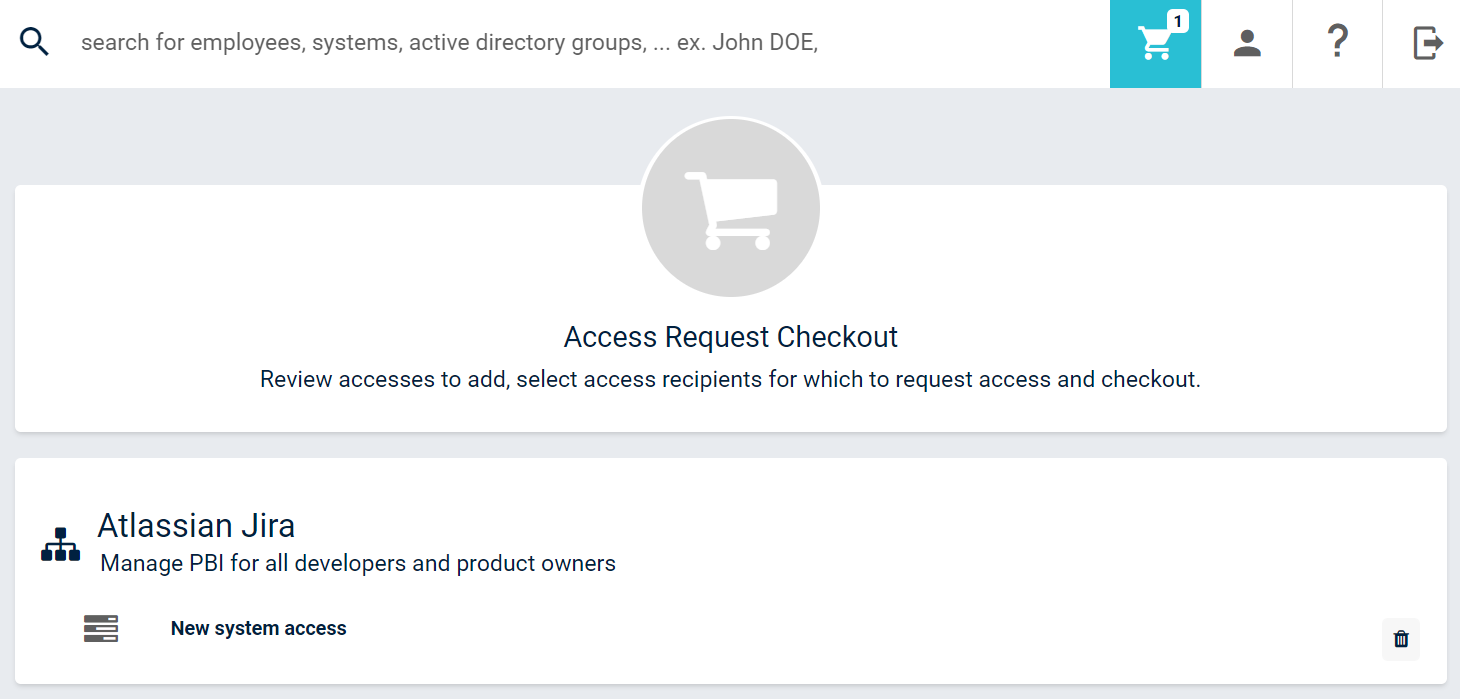
Click the people icon and select the user(s) for whom the access is requested. Note that all selected user(s) will be receiving all the system roles included in the shopping cart.
Submit your request
Click Submit on the right, at the bottom of the screen. Your request has been sent!
Submit button

2. Using the new request menu
As discussed in the View your profile and your accesses section, you can access the New Request menu that is available on your profile page.
Access Request Button

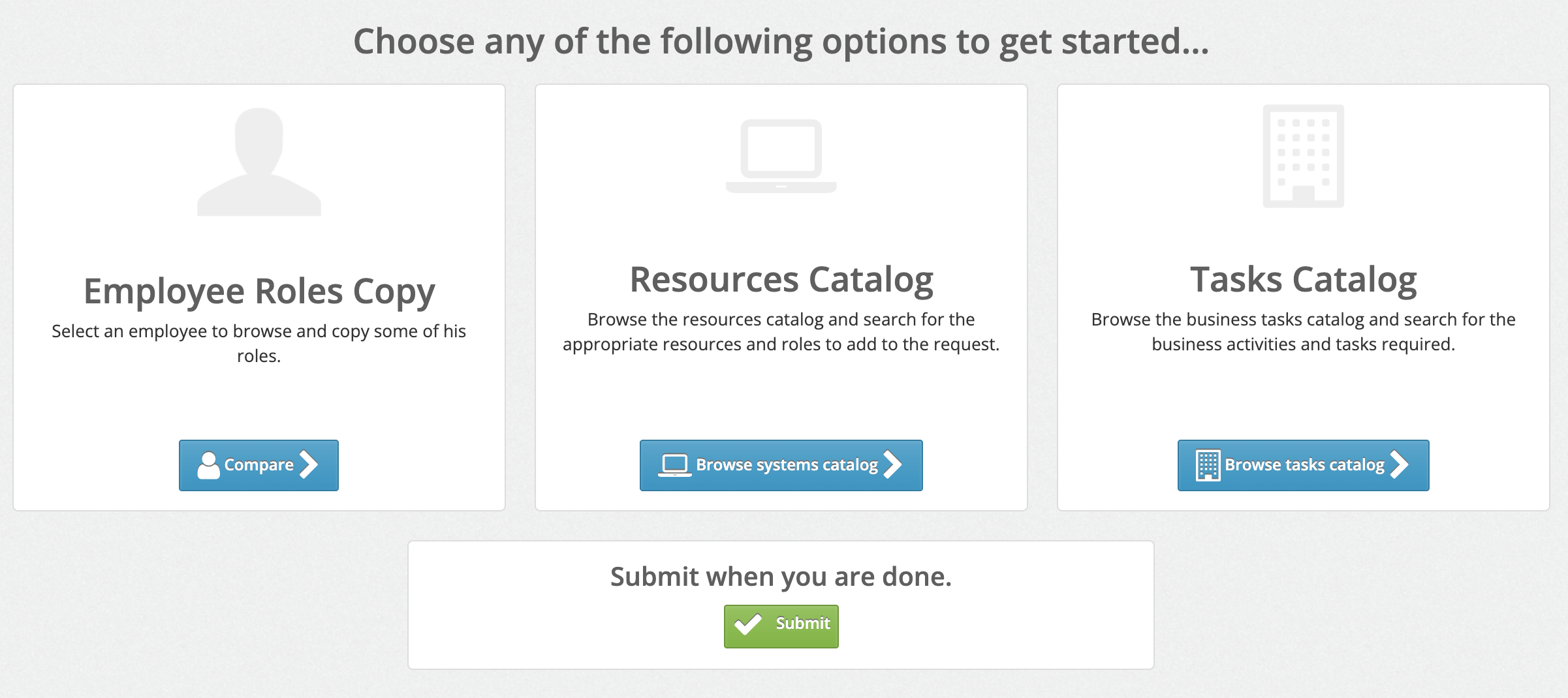
By clicking this button, you will access a new window showing you the name of the user that was selected, and the New Request button. You must click that button again to get to a new window showing you all of the available options.
From the new page, you should have three options. You can click the Employee Copy to find a similar employee from which you would like to copy the access roles. You can click the Systems Catalog to view the list of available options including: a) desktop applications, b) web applications, c) banking platforms, etc. You can also click the Task Catalog to see accesses based on tasks that have been recorded in QuartzID.
New Request Menu
3. Using the self service portal menu
As discussed in the View your profile and your accesses section, you can access the Self-Service menu that is available on your profile page.
Self Service Button

This service can be used to request a new access. In order to do this, click the icon and follow the instructions on screen.
Once a request has been made in this module, you can review it under the history section of your profile.